Change your password
- Open Password & Security.
- Enter your Old password and the New password twice. Generate makes a strong one; keep it in a password manager.
- Press Change your password now.
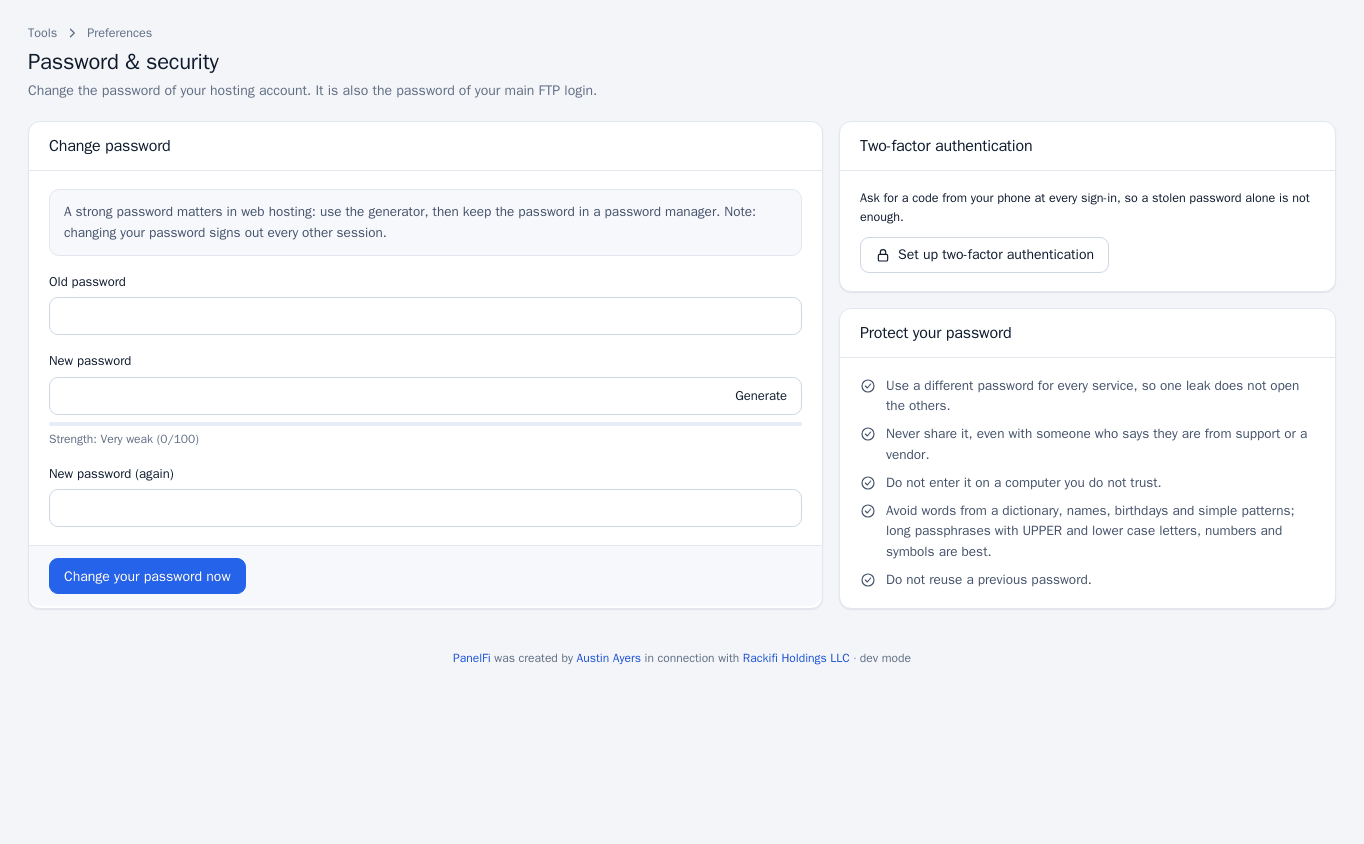
This is also the password of your main FTP login. Changing it signs out every other session. You are notified by email unless you switched that notice off under Contact Information.
Turn on two-factor authentication
With two-factor on, signing in needs your password and a 6-digit code from an authenticator app (Google Authenticator, Microsoft Authenticator, 1Password, Aegis and similar). No text messages are used.
- Install an authenticator app on your phone.
- Open Two-Factor Authentication and press Set up two-factor. Scan the QR code, or choose Cannot scan it? and type the key by hand (time-based, 6 digits).
- Type the Code shown in the app and press Turn on two-factor.
- Save the recovery codes shown. Each one signs you in once if you lose your phone, and they are shown only now. Print them or keep them in a password manager.
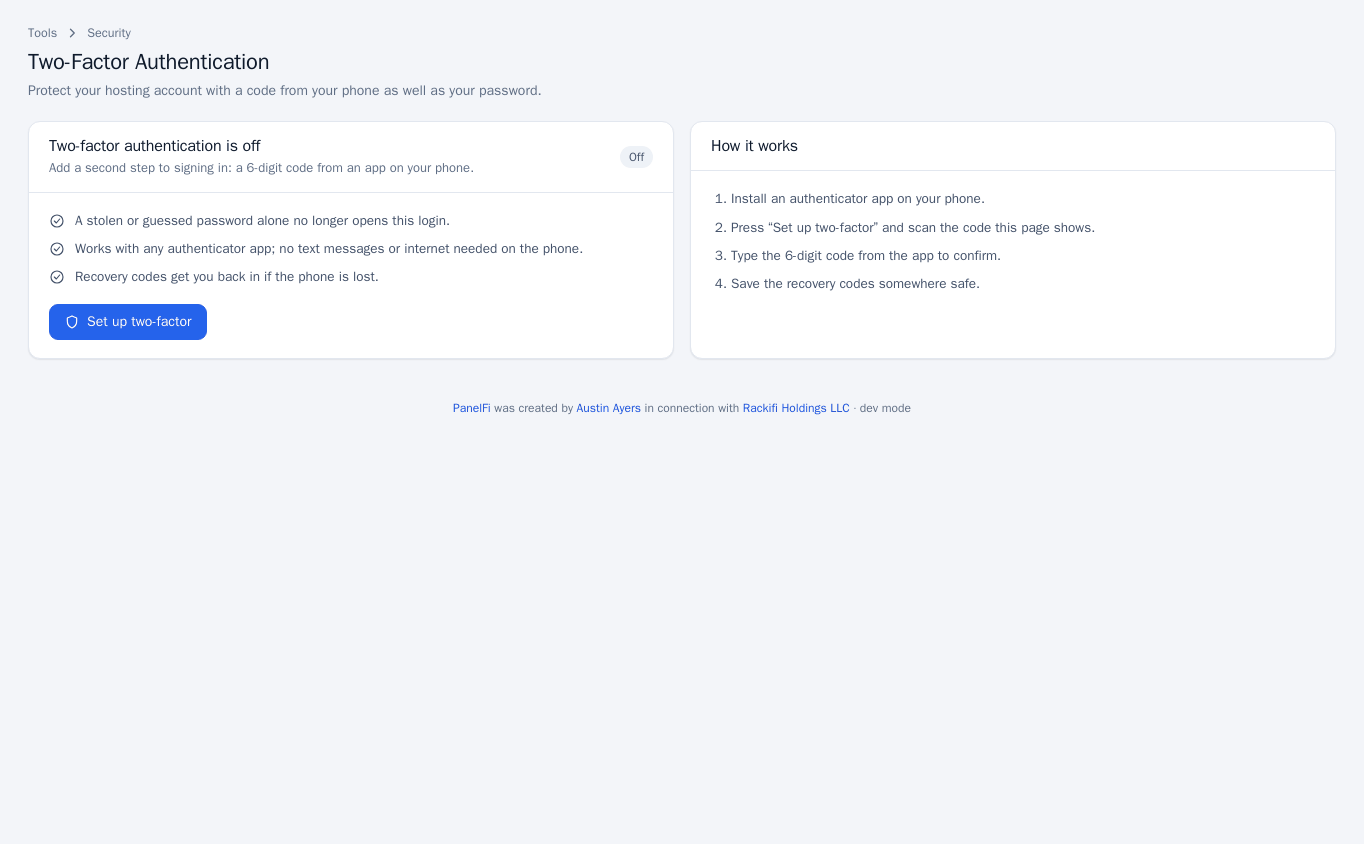
Once on, the page shows when it was turned on and how many recovery codes are left. Enter your Current password to Make new recovery codes (the old ones stop working) or to Turn off two-factor.
Two-factor can only be set up by the customer. A server administrator signed in on the customer's behalf sees a notice instead of the setup button. It can be switched off per package in the Feature Manager.
Contact information and notices
- Open Contact Information.
- Set the Email address for account notices and, optionally, a Second email address. Using an address on a domain this server hosts works, but one elsewhere is safer, because a full mailbox or a server problem would stop you receiving the notice.
- Enter your account password when you change an address.
- Under Notify me when, tick the notices you want and press Save.
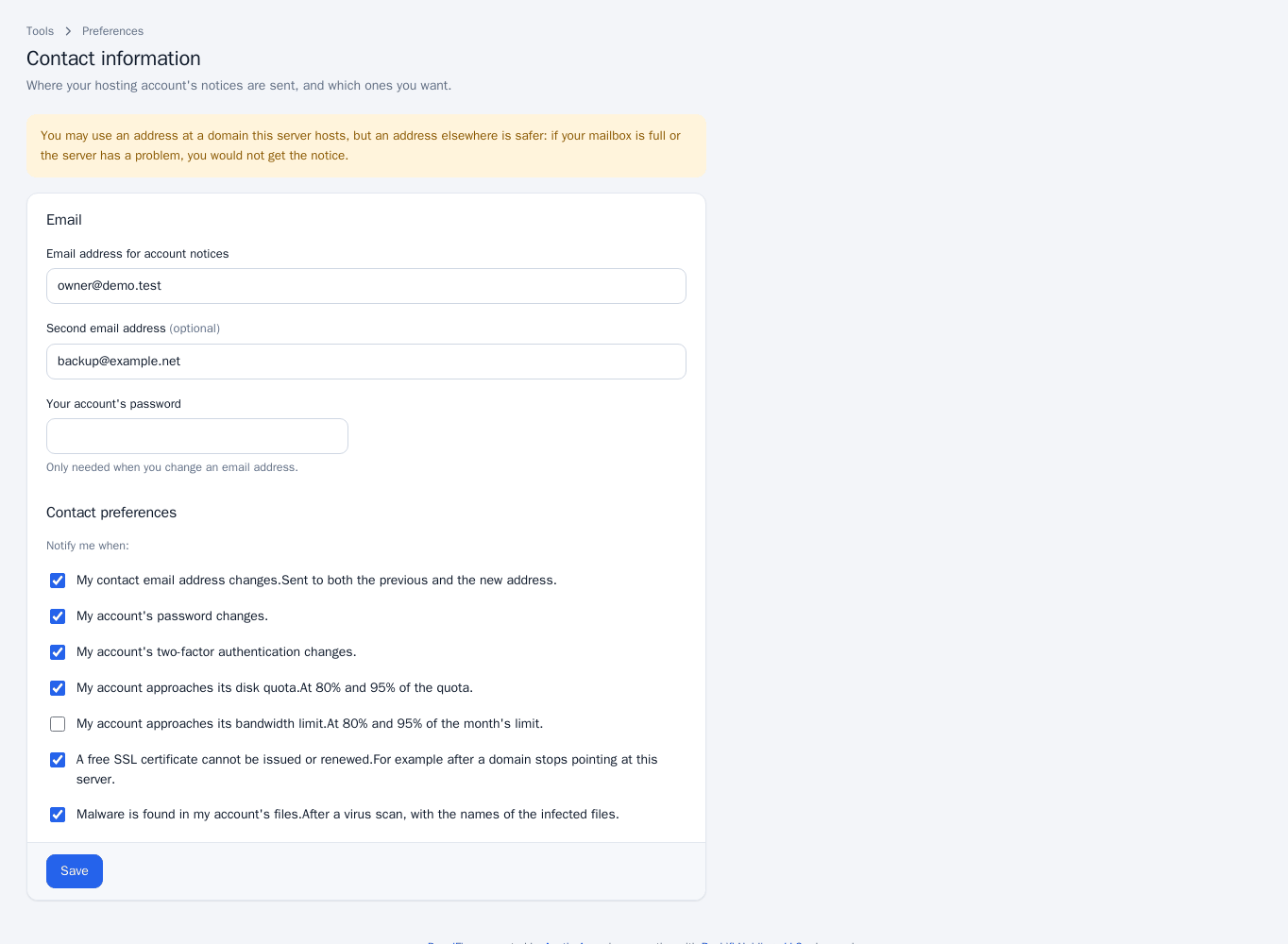
The notices are:
- My contact email address changes (sent to both the previous and the new address).
- My account's password changes.
- My account's two-factor authentication changes.
- My account approaches its disk quota (at 80% and 95%).
- My account approaches its bandwidth limit (at 80% and 95% of the month's limit).
- A free SSL certificate cannot be issued or renewed.
- Malware is found in my account's files.
Notes and limits
- Team logins (see Manage Team) can change only their own password; they cannot change yours, your contact details or two-factor.
- Password & Security and Contact Information are always available; they are not part of the Feature Manager.