What it does
The Transfer Tool moves accounts here from a cPanel and WHM server: the account, its domains, website files, databases, email accounts with their mail, forwarders, DNS records and cron jobs. CyberPanel is supported over SSH too. For the overall migration plan see Migrate from cPanel.
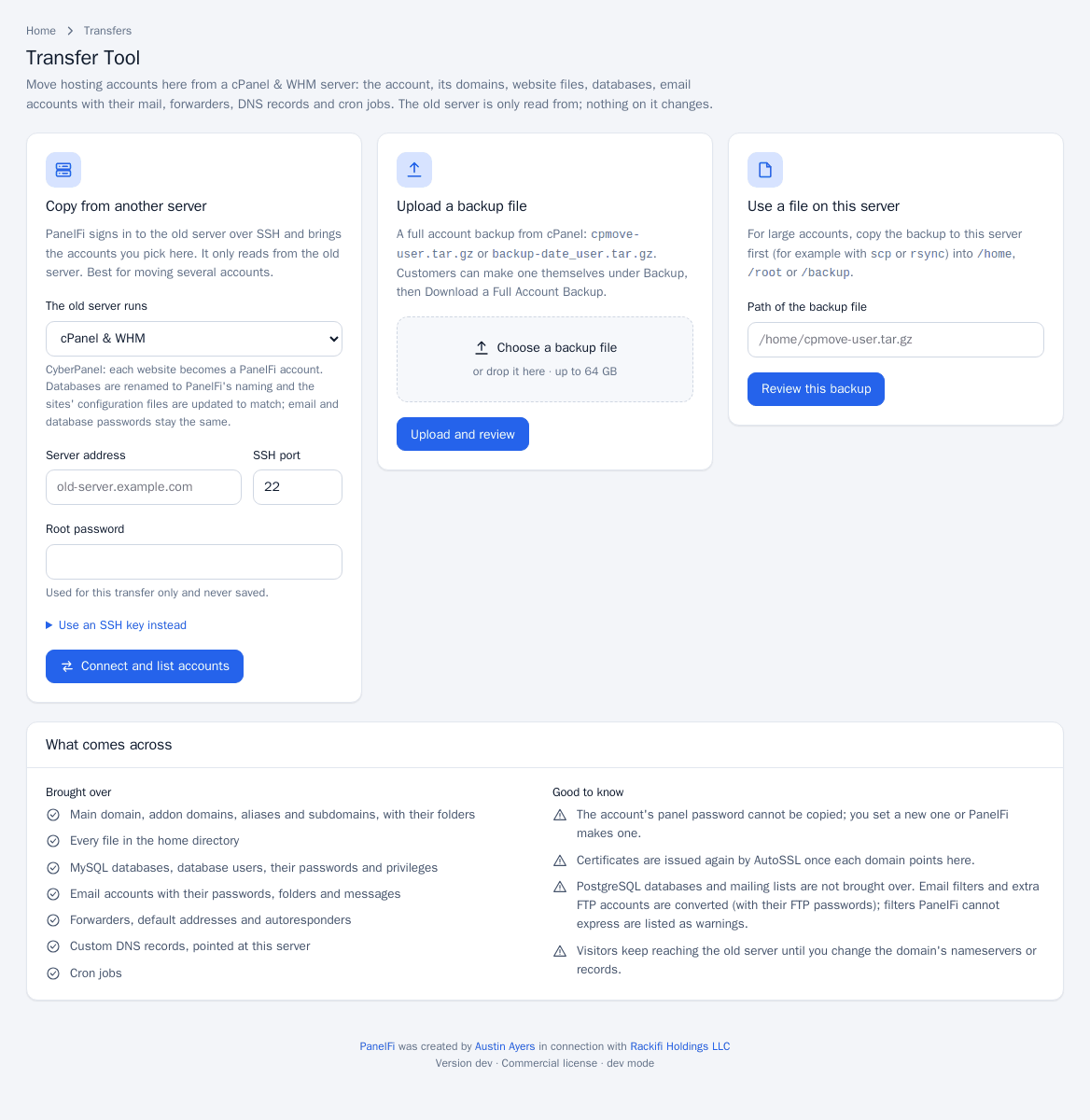
What comes across, and what does not
Brought over
- Main domain, addon domains, aliases and subdomains, with their folders.
- Every file in the home directory.
- MySQL databases, database users, their passwords and privileges.
- Email accounts with their passwords, folders and messages.
- Forwarders, default addresses and autoresponders.
- Custom DNS records, pointed at this server (records that pointed at the old server's address now point here).
- Cron jobs, copied as they were. Check their commands: program paths such as PHP differ between servers.
- Email filters and extra FTP accounts are converted (with their FTP passwords); filters PanelFi cannot express are listed as warnings.
Not brought over
- The account's panel password cannot be copied: you set a new one, or PanelFi makes one and shows it in the report. Email and database passwords stay the same where the old format allows; any that cannot be carried over get new passwords listed in the report (update the site's configuration file with a new database password).
- Certificates are not copied. AutoSSL issues new free certificates once each domain points at this server.
- PostgreSQL databases (PanelFi hosts MySQL/MariaDB) and Mailman mailing lists.
- Forwarders that pipe mail to a program or discard it, wildcard subdomains, and addon domains with a name PanelFi cannot host.
- Resellers: a cPanel reseller account comes across as a regular hosting account; create a reseller in the Reseller Center if needed (see Resellers).
- Database names must start with the account prefix here; databases or users that do not fit are skipped and listed.
Anything skipped appears under Not brought over on the review page and under Things to check in the final report.
Copy from another server over SSH
Best for moving several accounts. PanelFi signs in to the old server and reads from it.
- Open Transfers > Transfer Tool, card Copy from another server.
- Choose what The old server runs: cPanel and WHM or CyberPanel (other panels are listed as coming soon).
- Enter the Server address and SSH port, and either the Root password (used for this transfer only, never saved), or press Use an SSH key instead. With a key, run the shown command on the old server as root so this server's key may sign in, leave the password empty, and later run the shown removal command to take the access away; or paste a private key of your own (with its passphrase if needed).
- Click Connect and list accounts.
- Tick the accounts to copy. Rows with a problem show it. For CyberPanel, first choose One account per CyberPanel user or One account per website, then pick usernames and owners (you, an existing reseller, or a new reseller made under you).
- Under Transfer settings choose the Package (limits come from it; anything over a limit is skipped and listed) and what to bring over: files and mail folders, databases, email accounts and forwarders, custom DNS records, cron jobs.
- Click Copy selected accounts. Accounts are copied one after another; you can leave the page and the transfer keeps running.
Restore from a backup file
- In Upload a backup file, choose or drop a full cPanel backup (
cpmove-user.tar.gzorbackup-date_user.tar.gz), up to the size limit shown, then click Upload and review. Customers can make one themselves under Backup, Download a Full Account Backup. - For large accounts, copy the file to the server first (for example with scp or rsync) into
/home,/rootor/backup. In Use a file on this server enter the Path of the backup file and click Review this backup. - The review page, What is in this backup, lists main domain, addon domains, aliases, subdomains, file count and size, databases and users, email accounts, forwarders, cron jobs, the old server's address and the Not brought over notes.
- Pick the Package, set a New panel password (and confirm) and click Start transfer. For a PanelFi backup the button reads Restore account.
Read the report
When it finishes, each account shows Transferred or Failed with the reason. Copy the new panel password, new email passwords and new database passwords from the report; they are shown only there (the panel password can be changed later on the account's page). Use Open account to go to it. Recent transfers lists runs until the panel restarts or a day after they finish.
After the transfer: switch DNS
Visitors keep reaching the old server until you change the domain's nameservers at the registrar, or update its A record, to point at this server (see DNS zones). AutoSSL then issues certificates by itself (see AutoSSL). Lowering the TTL a day before the move shortens the switch-over.
Notes and limits
- The old server is only read from; nothing on it changes.
- Accounts are copied one after another.
- On CyberPanel, databases are renamed to
username_nameandwp-config.phpand similar files are updated in the copy. - Restoring a stored PanelFi backup uses the same review page; see Backups.