Where to find itCustomer panel › Software › Setup Node.js App ; Customer panel › Software › Setup Python App ; Customer panel › Software › Setup Ruby App
How it works
All three tools open the same page, filtered by language with tabs for Node.js, Python, Ruby and All applications. Each tab shows the language version installed on the server. The tools can be switched off for a package in the Feature Manager (one switch, Node.js apps, covers all three).
- The application must listen on the port given in the
PORTenvironment variable, on address127.0.0.1. A new application gets a small starter file that does this. - Visitors of the chosen site are handed to the application. While it is stopped, the site shows the files in the site's own folder.
- Each application may use up to 1 GB of memory; one that needs more is restarted.
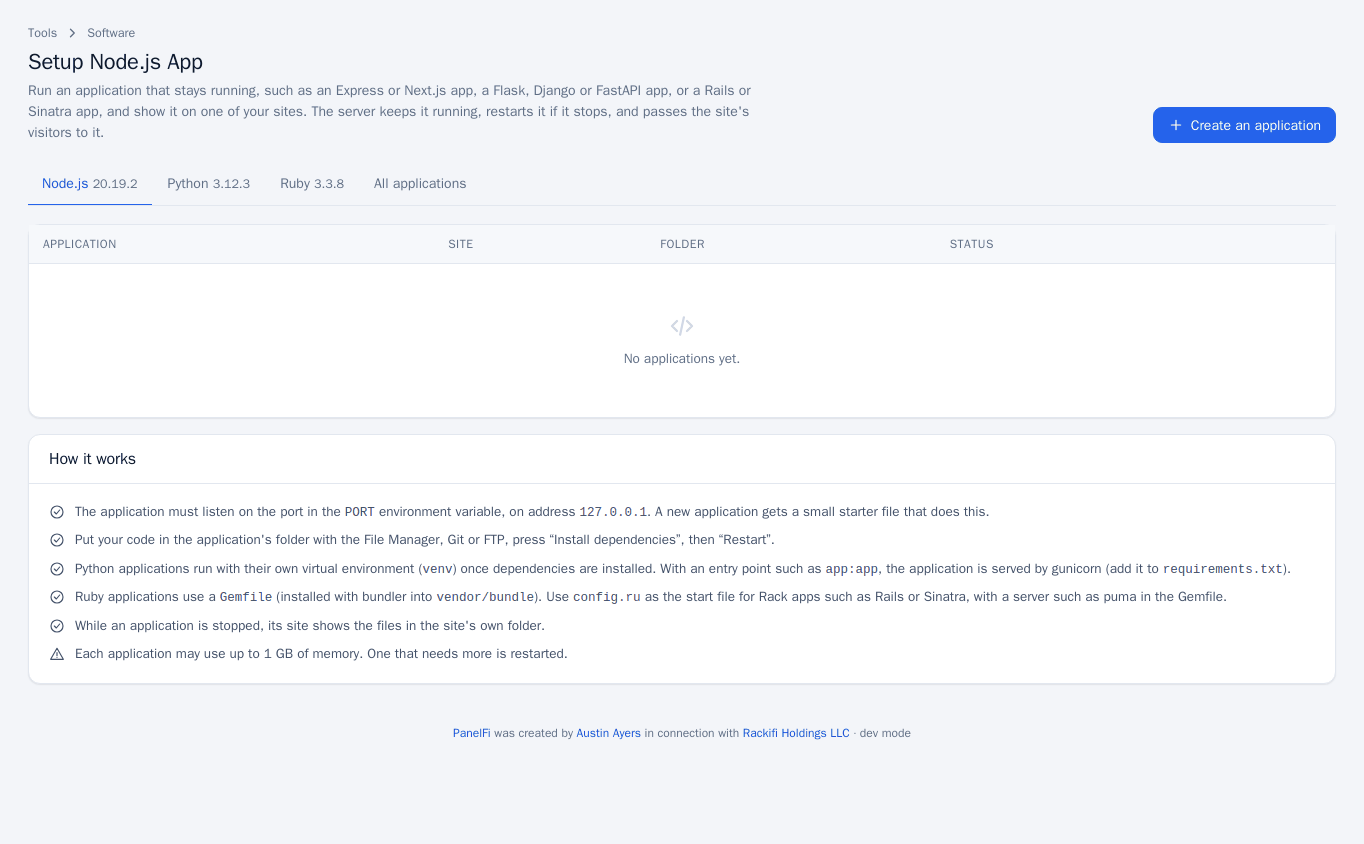
Create an application
- Press Create an application.
- Give it a Name, choose the language version and the Type (Node.js, Python or Ruby), and an Application mode: Production or Development. The mode sets
NODE_ENVorRACK_ENV. - Under Show it on, choose a website. The whole site is handed to the application, so create a subdomain under Domains first if it should not take over an existing site.
- Set the Folder (in your home folder, outside the website's own folder, for example
apps/shop-api) and the Application startup file (for exampleapp.js). - Python only: an optional Application entry point such as
app:app. With one, the app is served by gunicorn; leave it empty to run the startup file directly. - Optionally add Environment variables, one
NAME=valueper line, then press Create.
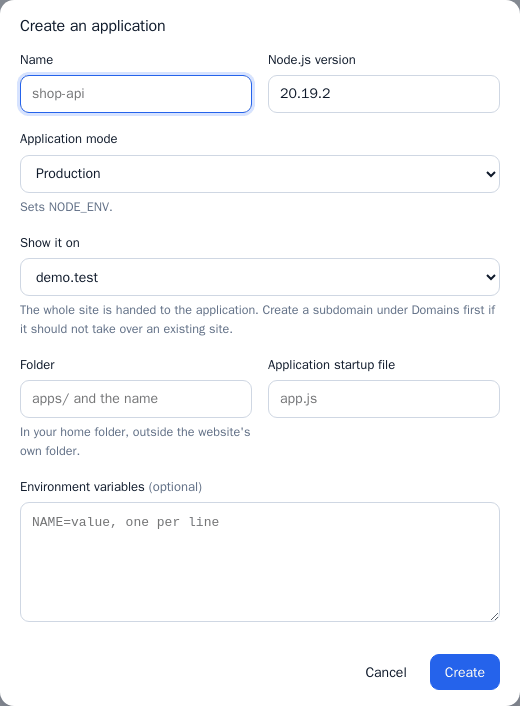
Deploy your code
- Put the code in the application's folder with the File Manager, Git or FTP.
- Press Install dependencies. Node.js reads
package.json; Python creates a virtual environment (venv) and installsrequirements.txt(add gunicorn to it if you use an entry point); Ruby installs theGemfilewith bundler intovendor/bundle. - The application is restarted automatically once the dependencies are installed. Use Restart after you later change your code.
For a Rack application such as Rails or Sinatra, use config.ru as the startup file and put a server such as puma in the Gemfile.
Daily management
Each application row shows its status: Running, Stopped, Not running, or Problem (it stopped by itself; check its log). The row actions are:
- Start, Restart and Stop.
- Install dependencies, as above.
- Log: the last 200 lines the application wrote, newest at the bottom.
- Settings: change the start file and the environment variables, then Save and restart.
PORTis set by the server and cannot be overridden. - Remove: removes the application; its files are left untouched.
Notes and limits
- Listen on
127.0.0.1and thePORTvariable only; the application is not reachable on other ports. - Use the Log first when an application shows Problem; a missing dependency or a wrong start file is the usual cause.
- Language versions available are those the server administrator installed.