Find an account
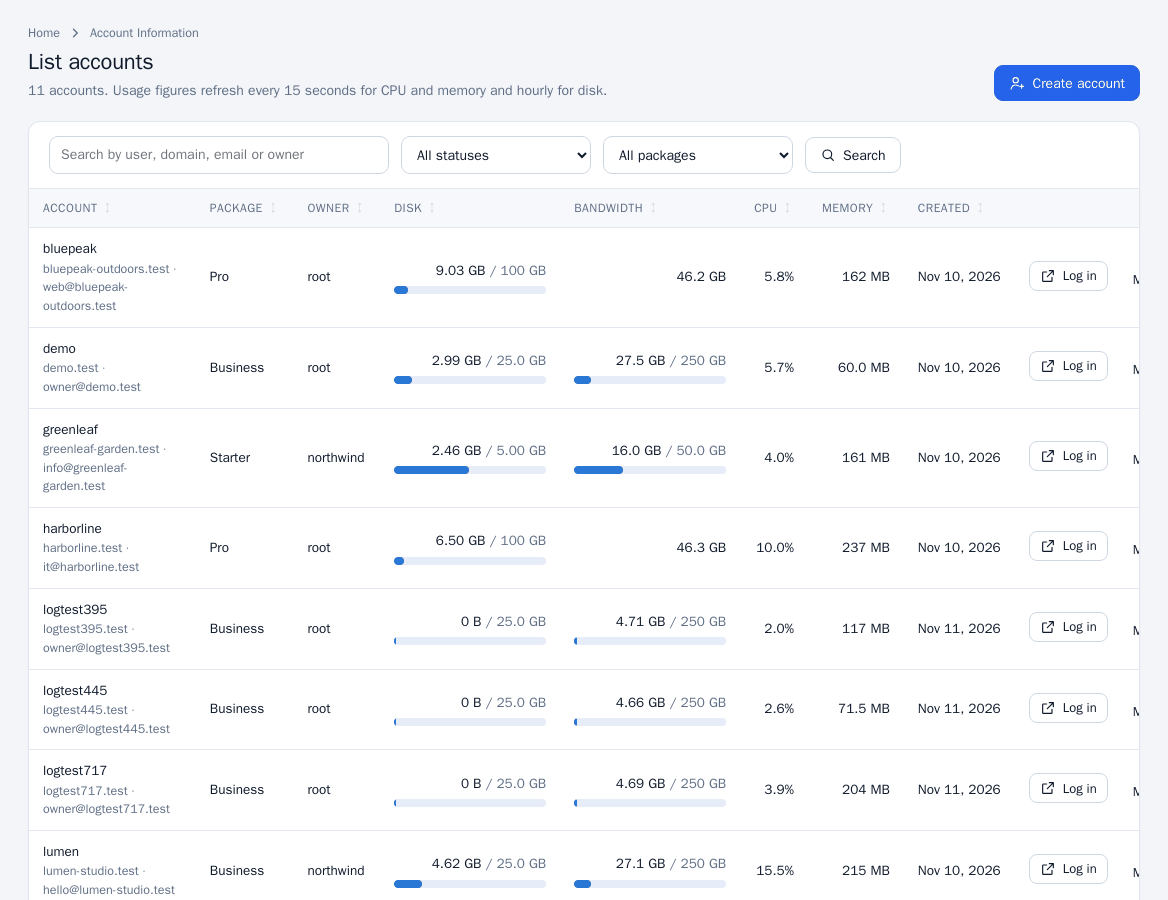
Open Account Information > List Accounts. The table shows each account's domain, package, owner, disk and bandwidth use against the package limits, CPU, memory and creation date. Usage refreshes every 15 seconds for CPU and memory and hourly for disk.
- Search by user, domain, email or owner, and filter by status (Active, Suspended, Over disk quota) and by package.
- The menu also has shortcuts: List Suspended Accounts and Show Accounts Over Quota.
- List Subdomains, List Parked Domains (aliases) and List Addon Domains list every domain of that kind across accounts.
- Click Log in to open the account's Customer panel, or Manage for the account page. Resellers see only their own accounts.
The account page
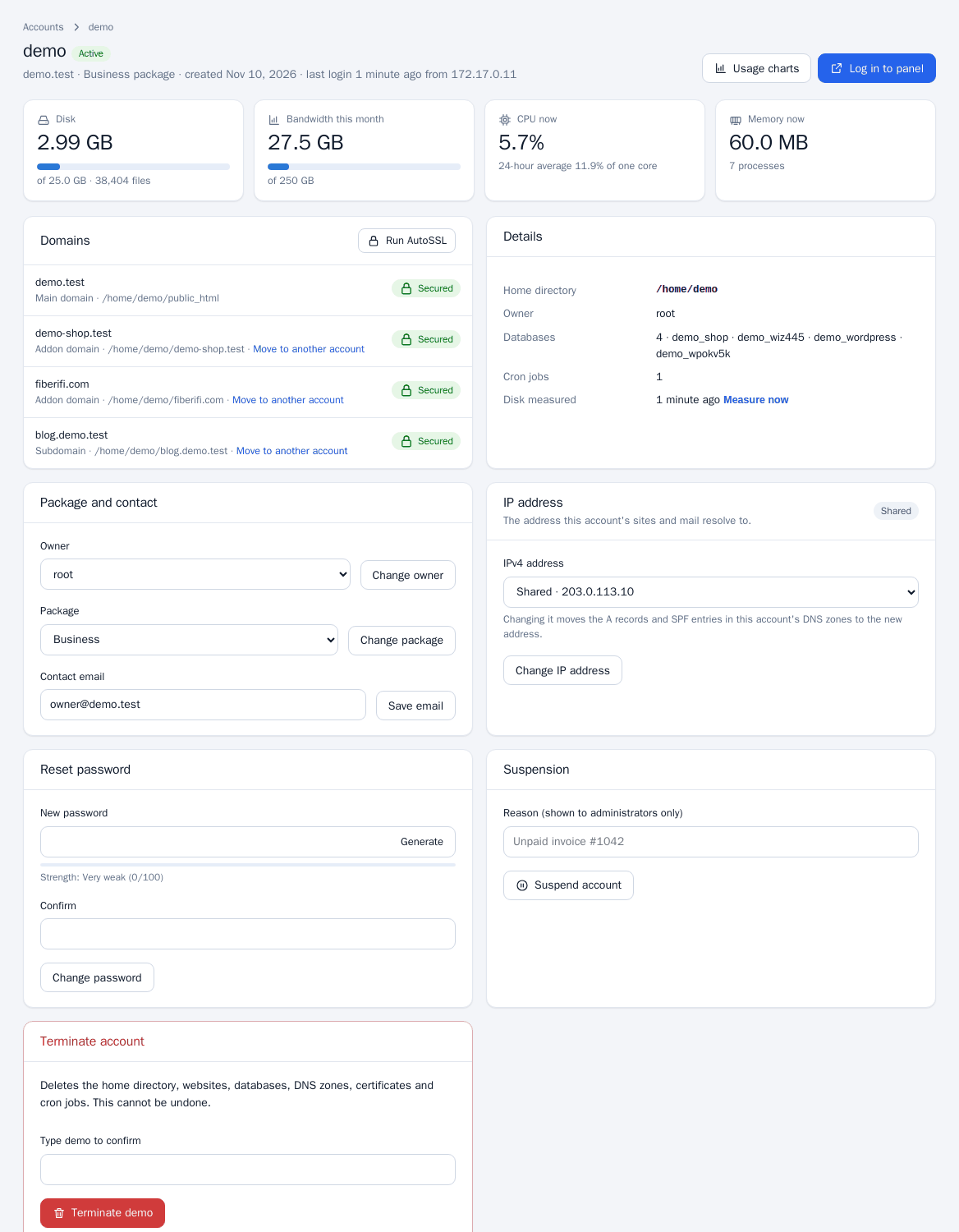
Click an account to open it. It shows suspension state, disk, bandwidth this month, CPU and memory, usage charts, the account's domains and its details (home directory, owner, databases, cron jobs).
Change the package
- In Package and contact choose a package under Package.
- Click Change package. Limits and the customer's tool list change at once. Quota and package options (dedicated IP, SSH access, reseller option) are applied; an option the new package lacks is not taken away.
The change is refused if the package would push a reseller's account past that reseller's limits, or if the package needs a dedicated IP and none is free.
Update the contact email
Edit Contact email and click Save email.
Reset the customer's password
- In Reset password enter the new password twice or click Generate.
- Click Change password. The account's open Customer panel sessions are signed out.
Change the owner (administrators only)
Pick a different administrator or reseller under Owner (reseller) and click Change owner. The move is refused if it would exceed the new owner's limits.
Change the IP address (administrators only)
Under IP address choose Shared or a free dedicated address and click Change IP address. The A records and SPF entries in the account's DNS zones move to the new address. See IP functions.
Measure disk usage
Click Measure now beside the disk figure to recount the account's disk use instead of waiting for the hourly measurement.
Run AutoSSL
Click Run AutoSSL in the Domains list to start certificate issuing for every domain on the account. Refresh in a minute for results; see AutoSSL.
Suspend and unsuspend
- In Suspension optionally enter a Reason (shown to administrators only).
- Click Suspend account. The websites show a suspension page, the customer's panel sessions are signed out and the customer can no longer log in. Cron jobs and the account's SSH access stop too.
- To restore everything click Unsuspend account.
An account held by the PanelFi license (see Licensing and updates) cannot be unsuspended here.
Terminate an account
Terminating deletes the home directory, websites, databases, DNS zones, certificates and cron jobs. It cannot be undone. Take a backup first if there is any doubt.
- At the bottom of the account page find Terminate account.
- Type the account's username in Type to confirm and click Terminate.
Log in as the customer
Click Log in to panel on the account page (or Log in in the list). A one-time link valid for one minute signs you in to the Customer panel on port 2083 as that account, with no password needed.
Notes
- Each change is written to the Audit Log, and the account page lists recent activity.
- Moving a domain between accounts is covered in Move a Domain.