Directory Privacy
Ask visitors for a name and password before they can open a folder of your site, such as a staging copy or a members’ area.
- Open Files > Directory Privacy and click Protect a folder.
- Choose the Site and the Folder (use
/to protect the whole site). - Enter the Name shown to visitors (the sign-in prompt title) and the first user and password.
- Click Protect.
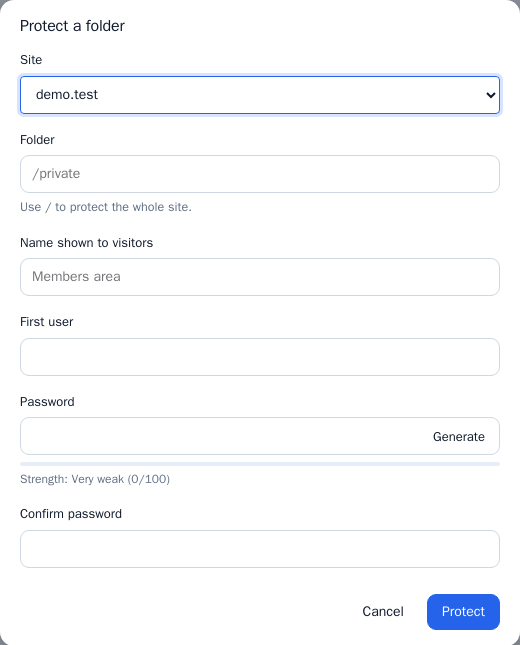
Each protected folder lists its users. Use Add a user, Change password or Remove for a user, and Remove protection to open the folder again.
Hotlink Protection
Hotlinking is when another website shows your images or videos straight from your server, using your bandwidth. Open Security > Hotlink Protection, tick Protect my files from hotlinking and set:
- File types to protect: comma-separated extensions. Pages (html, php) cannot be protected.
- Other sites that may use these files: one domain per line. Your own domains are always allowed.
Click Save. The setting applies to every site in the account.
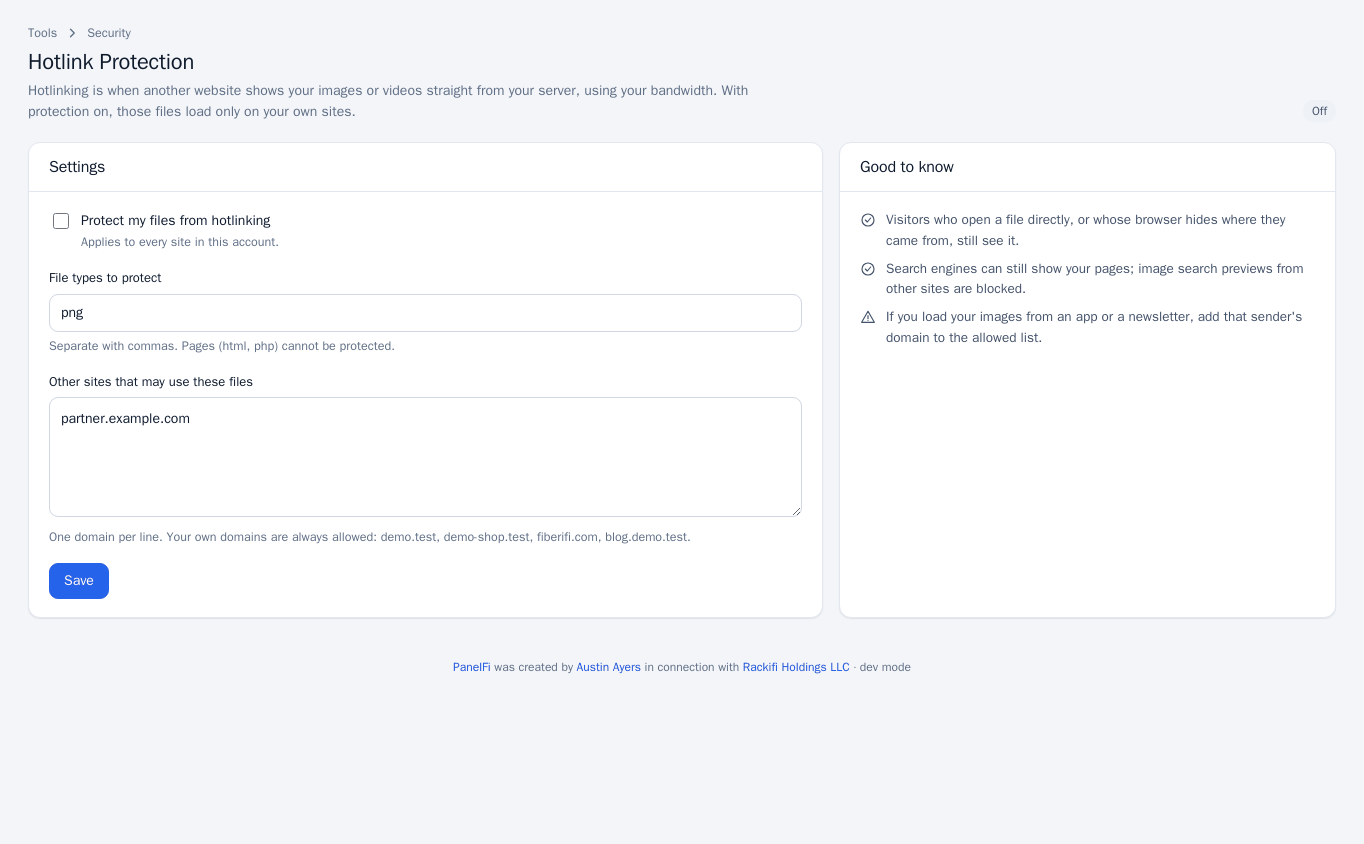
Visitors who open a file directly, or whose browser hides where they came from, still see it. If you load images from an app or a newsletter, add that sender’s domain to the allowed list.
IP Blocker
Stop an address or a whole network from opening any of your sites. Blocked visitors get a “forbidden” error.
- Open Security > IP Blocker.
- Enter an address (
203.0.113.7) or a range (203.0.113.0/24) and an optional note. - Click Block. Use Unblock in the list to remove it.
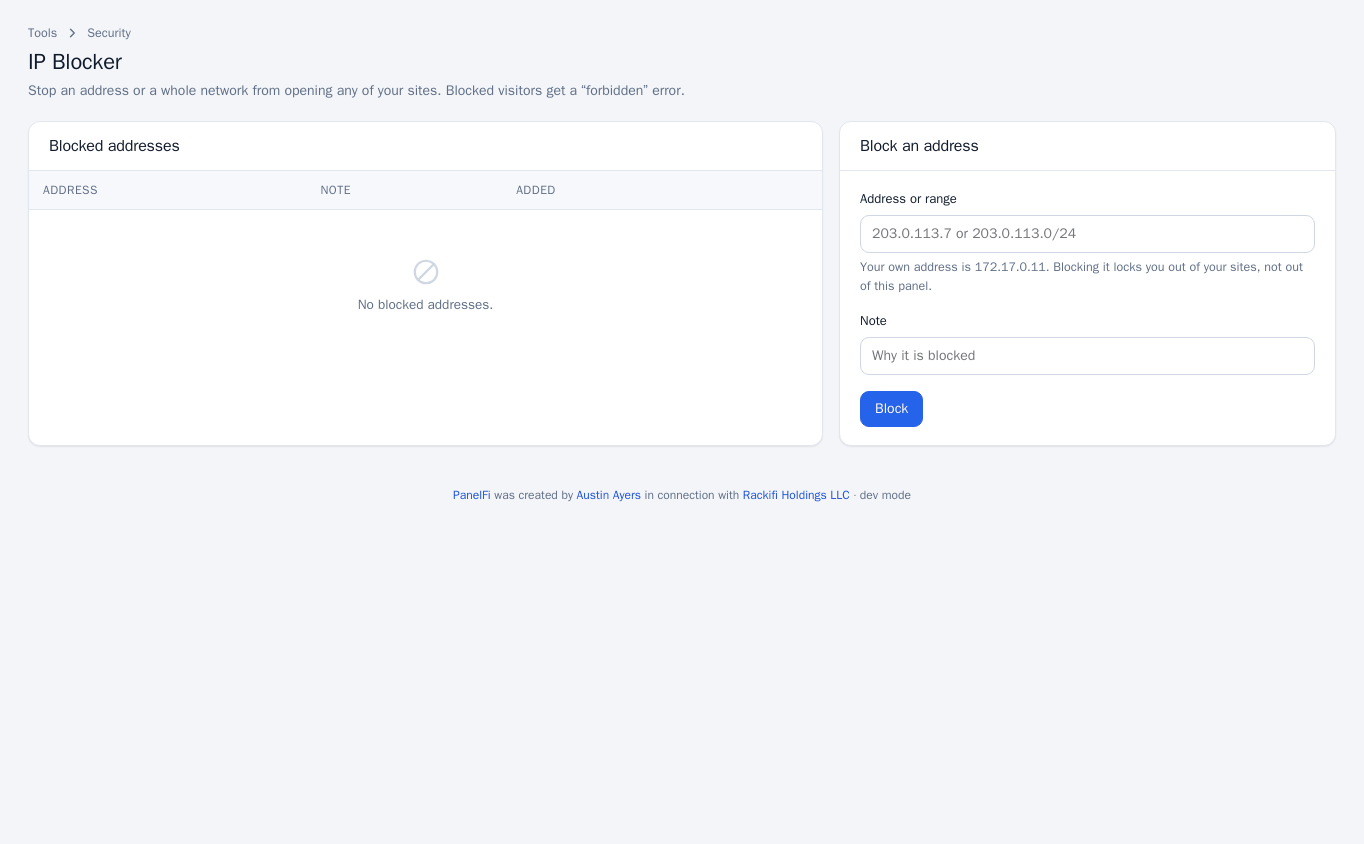
Blocking your own address (shown on the page) locks you out of your sites, not out of this panel.
Indexes
Under Advanced > Indexes choose, per site, what visitors see when they open a folder that has no index page: an error (Show an error) or a list of its files (List the files). Listing lets anyone browse everything in such folders, so leave it off unless you mean to share them.
Error Pages
Under Advanced > Error Pages choose a site and a status code (400, 401, 403, 404, 500, 502 or 503), then edit the HTML and click Save page. The page is saved as error_<code>.html in the site’s folder. Use the standard page removes your custom page.
Disk Usage
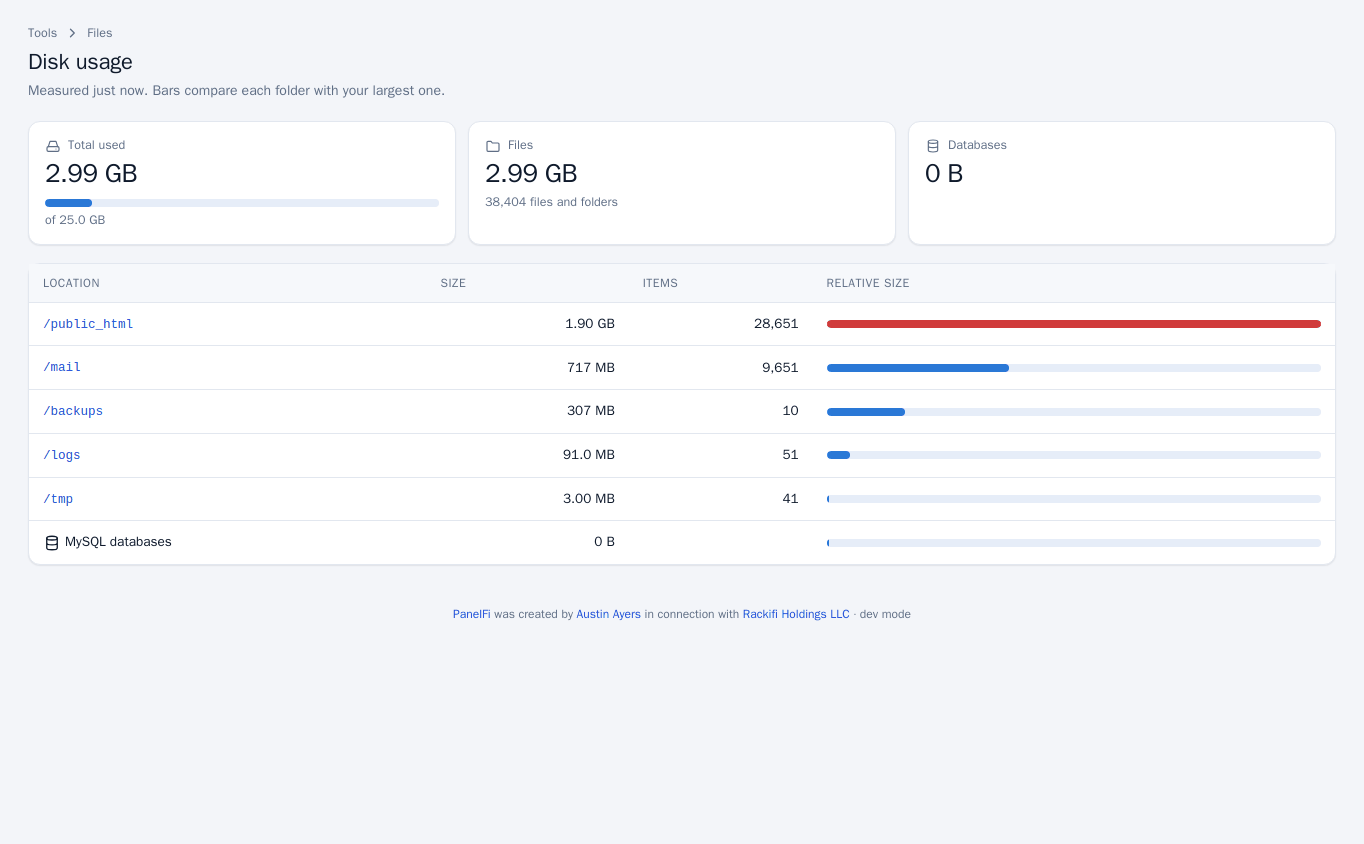
Open Files > Disk Usage for a measurement taken when you open the page: total used against your quota, files versus databases, and the size and item count of your main folders (such as public_html, mail, backups, logs), with bars compared to the largest one. Click a folder to open it in the File Manager.
Notes and limits
- Each of these tools can be switched off per package in the Feature Manager.
- Hotlink and IP rules are applied by the web server configuration for every site in the account.