Mail server limits and protections
Settings here apply to every domain on the server.
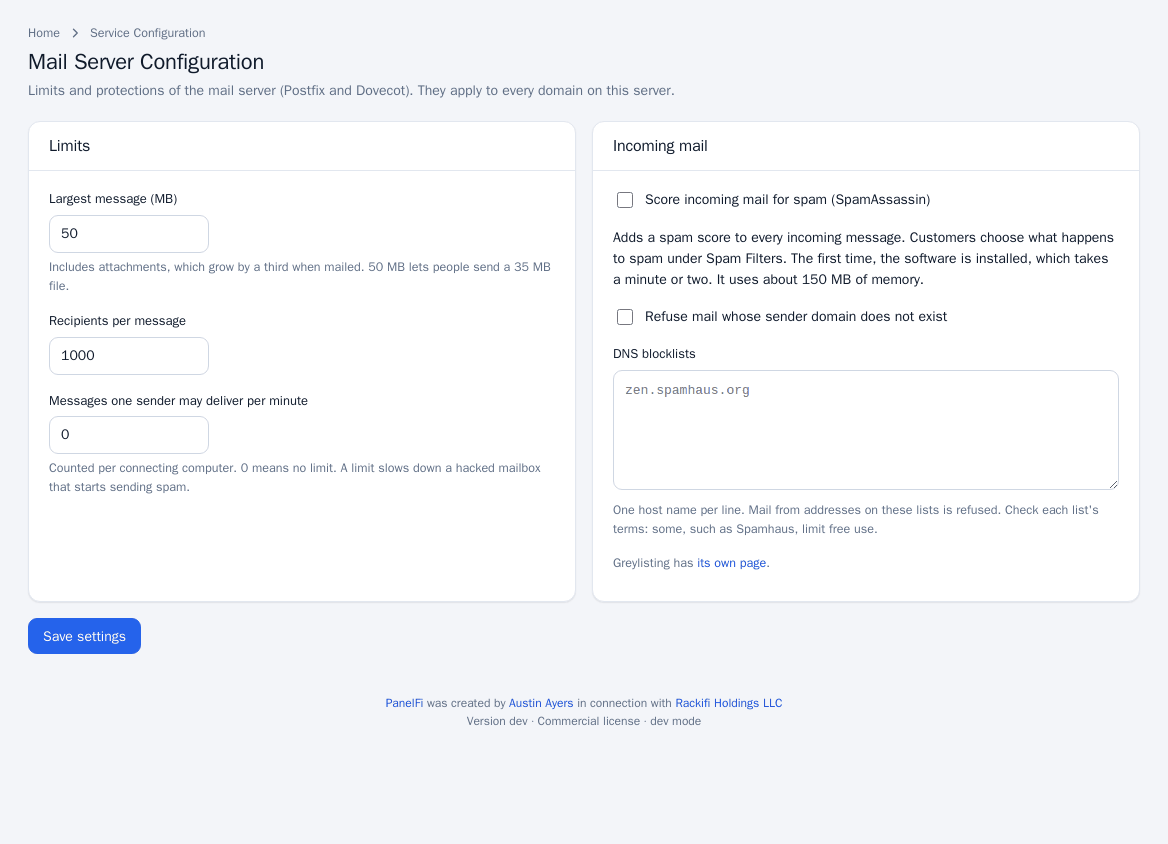
- Open Service Configuration > Mail Server Configuration.
- Under Limits set the Largest message (MB) (attachments grow by a third when mailed, so 50 MB lets people send a 35 MB file), Recipients per message, and Messages one sender may deliver per minute (counted per connecting computer; 0 means no limit; it slows down a hacked mailbox that starts sending spam).
- Under Incoming mail optionally turn on Score incoming mail for spam (SpamAssassin). It adds a spam score to every message; customers choose what happens to spam under Spam Filters. The first time it is installed, taking a minute or two, and it uses about 150 MB of memory. A status badge shows Running or Not running.
- Optionally enable Refuse mail whose sender domain does not exist and list DNS blocklists, one host name per line. Check each list's terms: some, such as Spamhaus, limit free use.
- Click Save settings.
Hostname email deliverability
Bounces, cron and system notices are sent as the server's hostname, and other mail servers check that hostname when this server connects. This page checks the records they look at, in public DNS.
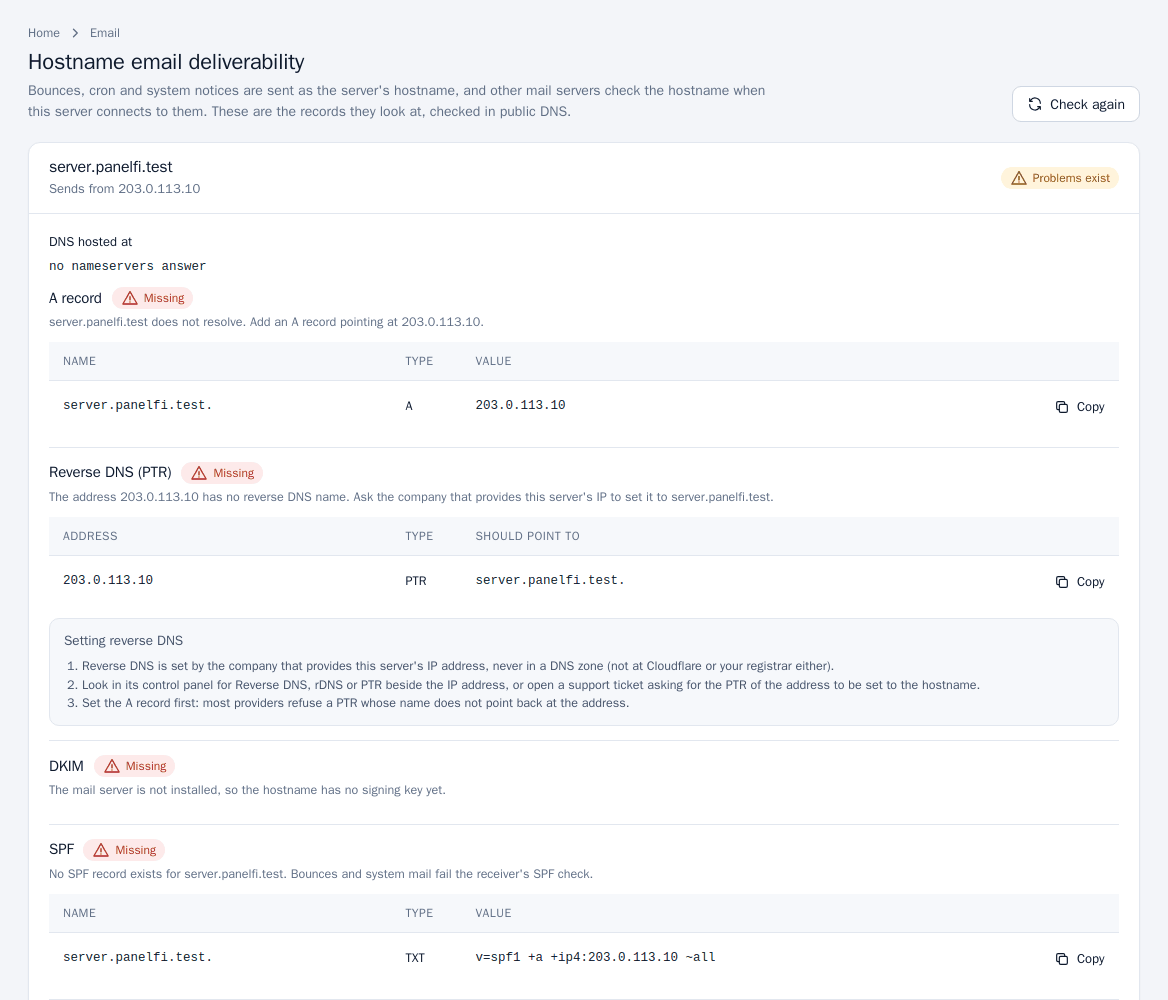
- Open Email > Hostname Email Deliverability. The header shows the hostname, the address it sends from and an overall Valid or Problems exist result.
- Each check (A record, reverse DNS (PTR), DKIM and SPF) shows its status, an explanation and what public DNS returns. For a failing one, a table gives the name, type and value to add, with a Copy button.
- If the hostname's zone is on this server and it is authoritative, click Add the missing records to <zone>. Otherwise add them at the DNS host shown (the page lists steps for it). Reverse DNS (PTR) cannot be added here; it is set at your hosting provider, and the page shows steps.
- Click Check again after changing DNS.
Mail Queue Manager
Lists messages waiting for delivery: age and ID, sender, recipients, size and status. Deferred messages are retried automatically for up to five days. Use Retry all now to try again immediately, Delete on a message, or Delete all (type delete to confirm; senders are not told).
Mail Delivery Reports
Every delivery attempt of the mail system, newest first, with the reply of the receiving server. Use it to see why a message bounced. Messages still waiting are in the Mail Queue Manager.
Greylisting
Greylisting asks a mail server this server has not heard from before to come back in a few minutes. Real mail servers do; most spam software never tries twice.
- Open Email > Greylisting, set Ask new senders to come back after (seconds) (300 is usual) and turn it on. The first time, the greylisting software (postgrey) is installed.
- Use Save delay to change the delay or Turn greylisting off.
Mail your customers send through this server is never delayed, nor is mail from senders that delivered before. Large providers that send from many servers are on a built-in exception list. One-time codes and password-reset mail from new senders can arrive minutes late; if customers depend on them, leave greylisting off and rely on spam scoring.
FTP server
Service Configuration > FTP Server Configuration shows the Pure-FTPd settings (port 21 for FTP and explicit FTPS, passive ports 30000 to 30049, the panel's certificate, anonymous FTP off), the number of logins and a list of extra FTP accounts customers created. If it is not installed, run bash /usr/local/panelfi/share/ftp/install-ftp.sh as root. Open ports 21 and 30000 to 30049 in any firewall in front of the server.
Notes and limits
- The mail ports to open are 25, 465, 587, 993 and 995 (see Requirements and install).
- Per-domain DNS records for customers (SPF, DKIM, DMARC) are in the Customer panel: Email deliverability.