User Manager: one login for email and FTP
Each person has one login of the form [email protected] and one password for every service you switch on for them (email, FTP). It is a convenient way to manage people instead of separate mailboxes and FTP accounts.
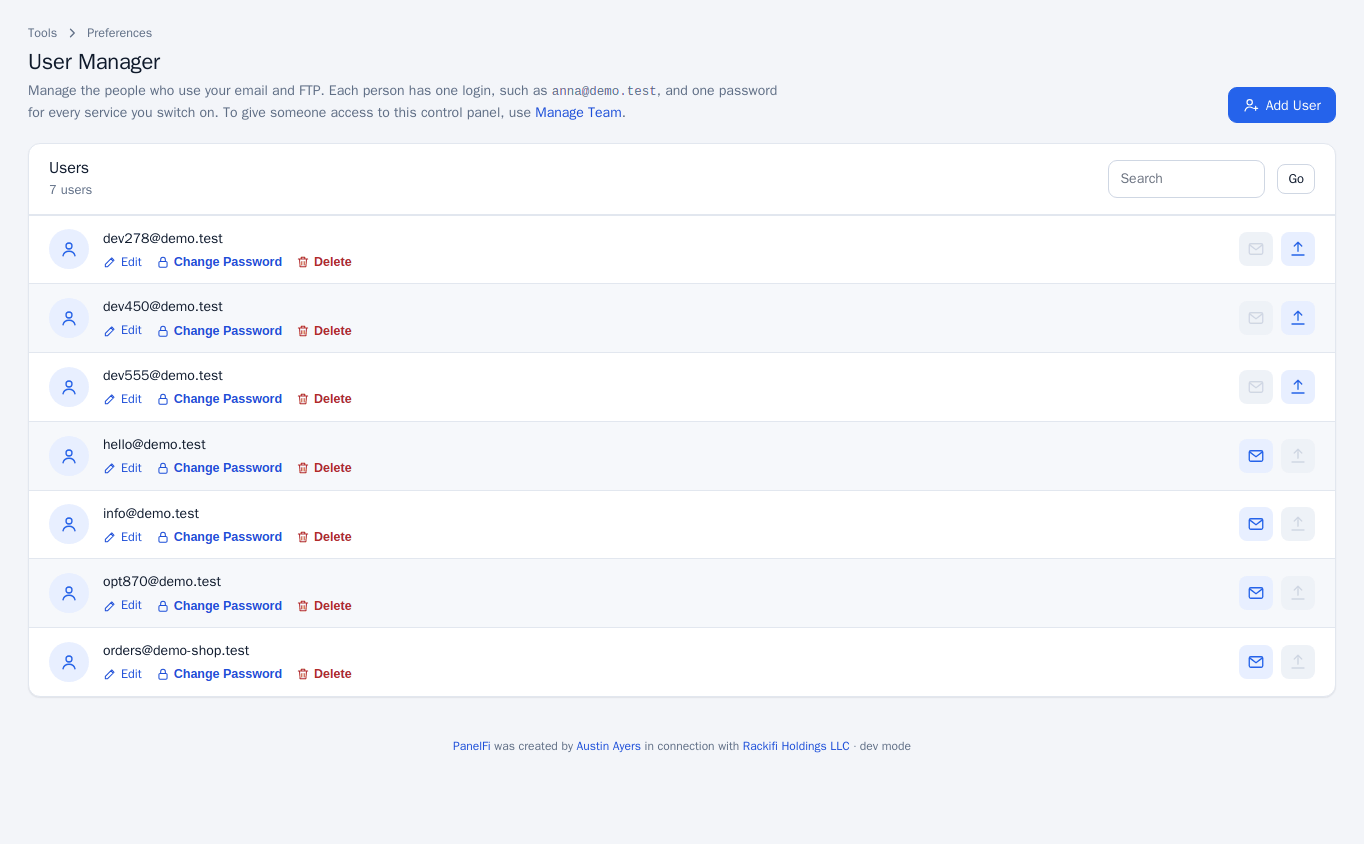
Add a user
- Open User Manager and press Add User.
- Under Basic information, enter the Full name, the Username and the domain to put after the
@, and an optional Contact email address to reach the person outside their own mailbox. - Under Security information, set a password twice (Generate makes a strong one).
- Under Services, switch on Email and/or FTP. Each has a Quota in MB or GB, or Unlimited. FTP also takes a Home directory the person is limited to.
- Press Create, or Create and Add Another User.
Change or remove a user
- Edit changes the name, contact address and services. Switching a service on gives it the user's current password. Switching email off keeps the mail already received in the folder.
- Change Password sets a new password, which applies to email and FTP alike.
- Delete stops the user's email account and FTP login. Files they uploaded stay. You can choose to also delete the mail in their mailbox.
The search box finds users by name. The icons at the right of each row show which services are on. FTP appears only when FTP is installed on the server and part of your package.
Manage Team: logins to the control panel
To let someone else use the control panel, give them their own login instead of sharing your password. They never learn your password and you can take their access away at any time.
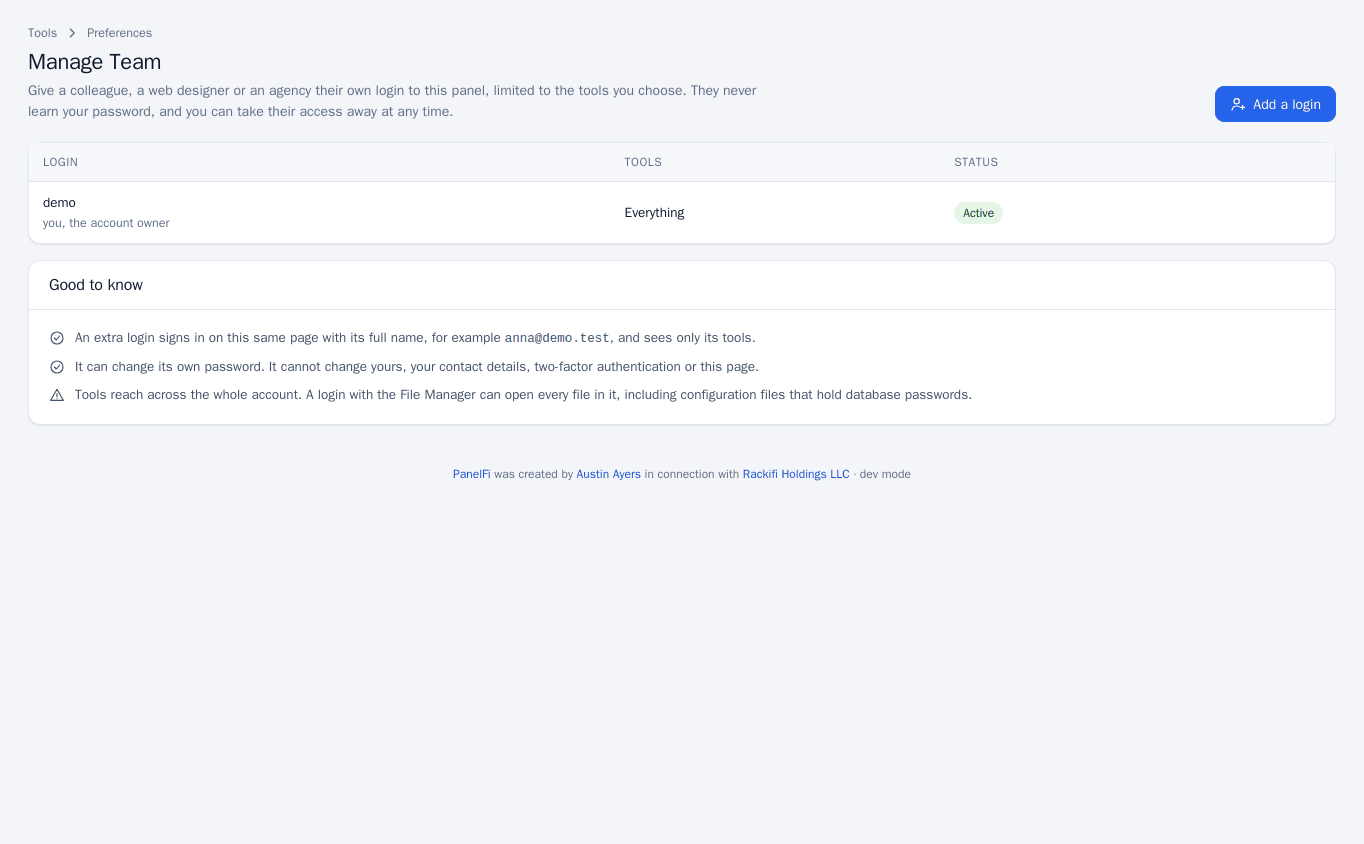
Add a login
- Open Manage Team and press Add a login.
- Enter a Name, the Login (the part before the
@) and a password twice. - Choose the tools the person may use. The Roles buttons tick sets for you: Admin (everything), Database, Email and Web (domains, files, software, advanced, security and metrics). Clear unticks everything. Only tools in your hosting package can be given out.
- Press Add login.
The person signs in on the normal customer panel sign-in page with their full login name, for example [email protected], and sees only their tools.
Edit, switch off or remove a login
The table lists your own owner login (everything, always active) and each team login with its tools and status. Edit changes the name, password and tools, and lets you tick Switch this login off for now to block it without deleting it. Remove deletes the login.
Notes and limits
- Tools reach across the whole account. A login with the File Manager can open every file in it, including configuration files that hold database passwords. Grant tools carefully.
- A team login can change its own password. It cannot change yours, your contact details, two-factor authentication or the Manage Team page.
- Both tools can be switched off per package in the Feature Manager.