How settings stack
PHP settings are applied in layers. The server's defaults come first, then your account's options, then a single domain's own overrides. A later layer wins over an earlier one, and a field you leave empty falls back to the layer below.
The MultiPHP Manager has four tabs: Versions, Options, Extensions and Domain INI overrides. The tool can be switched off for a hosting package in the Feature Manager.
Choose a PHP version
- Open MultiPHP Manager and stay on the Versions tab.
- Under Account PHP version, pick a version (or Server default) and press Apply. Every domain set to Inherit uses it.
- To give one domain its own version, pick it in that domain's row in the Domains table. The In use column shows the version that actually applies and whether it comes from the account or the server.
- To change several domains at once, tick them, choose a version (or Inherit (account version)) next to Set the ticked domains to, and press Apply.
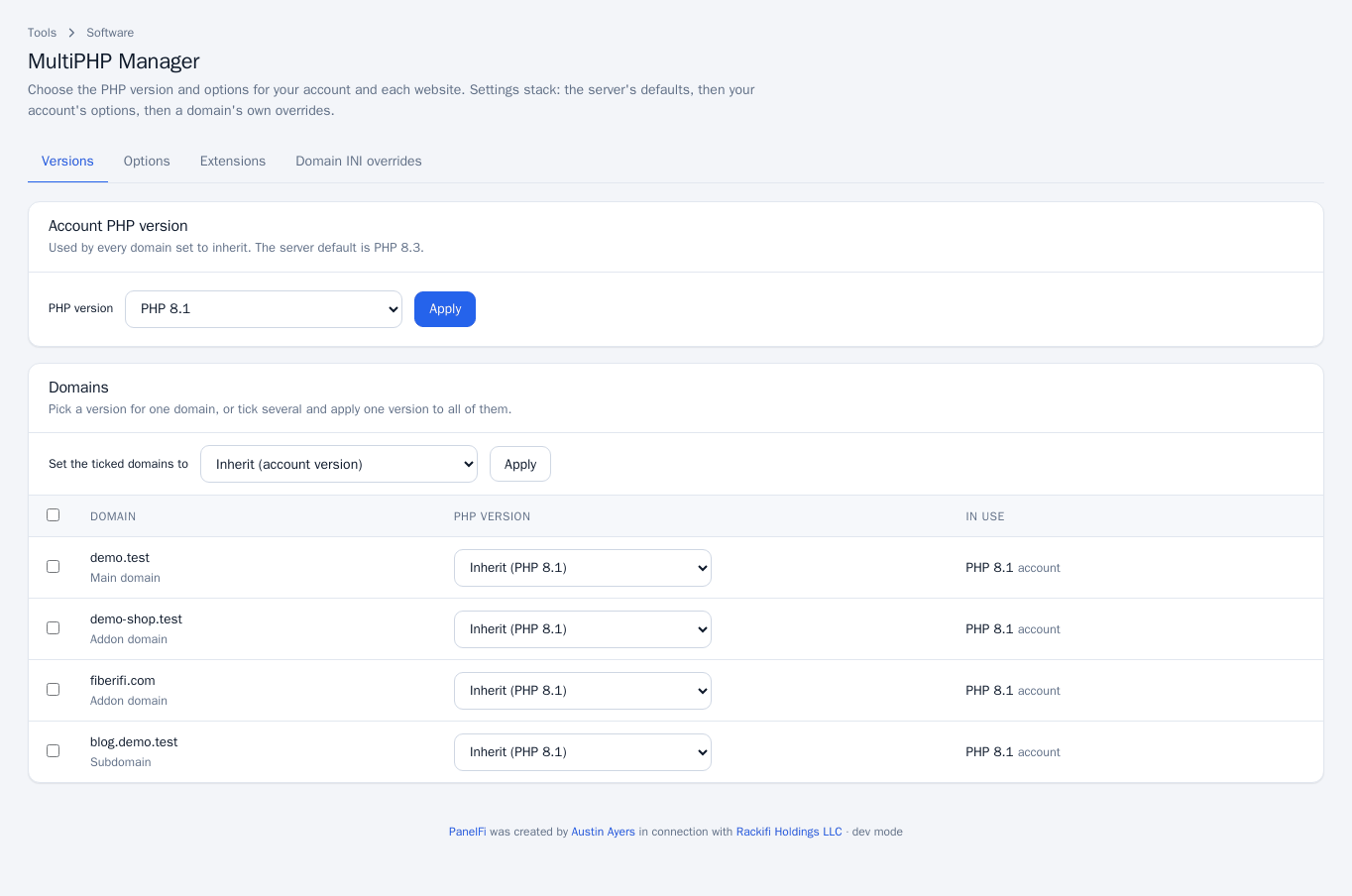
Only domains that have their own website are listed.
Change PHP options for the whole account
- Open the Options tab.
- Set any of the fields, grouped as Resources, Uploads, Errors, Output, Sessions, OPcache and so on. Common ones are Memory limit (
memory_limit), Time limit (max_execution_time), Largest upload (upload_max_filesize) and Largest form submission (post_max_size). - Leave a field empty to use the server's value. Boolean fields offer Default, On and Off.
- Press Save options. PHP restarts for your sites so the change shows at once.
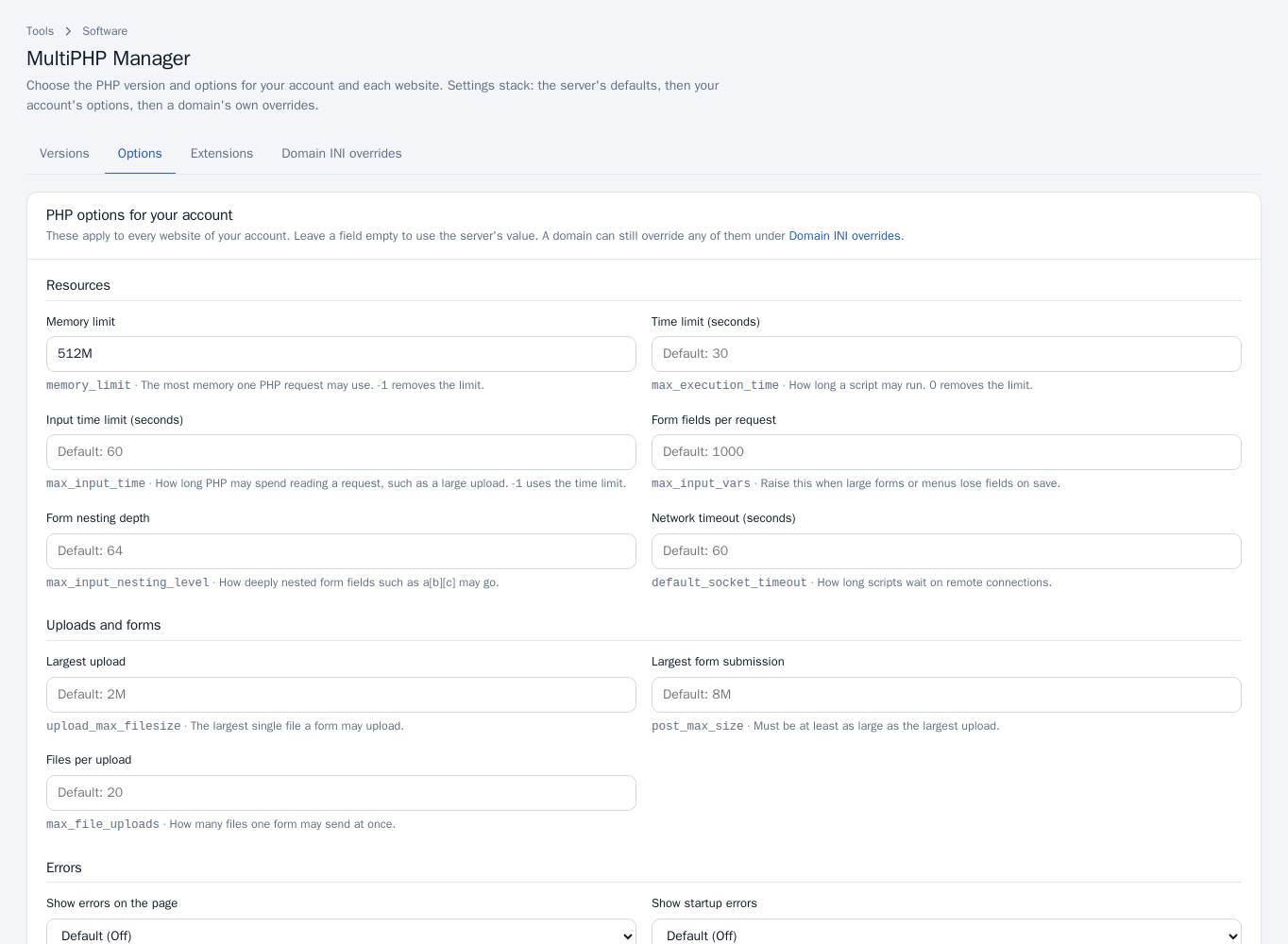
Some directives are reserved for the server administrator and do not appear here.
Switch extensions on or off
- Open the Extensions tab and pick the PHP version in the selector at the top right, then Show.
- Ticked extensions are loaded for your sites that use that version. Greyed-out ones are loaded for everyone on the server and cannot be changed.
- Tick or untick the optional ones (use the search box to find one) and press Save. Reset PHP extensions to default returns to the server's choice.
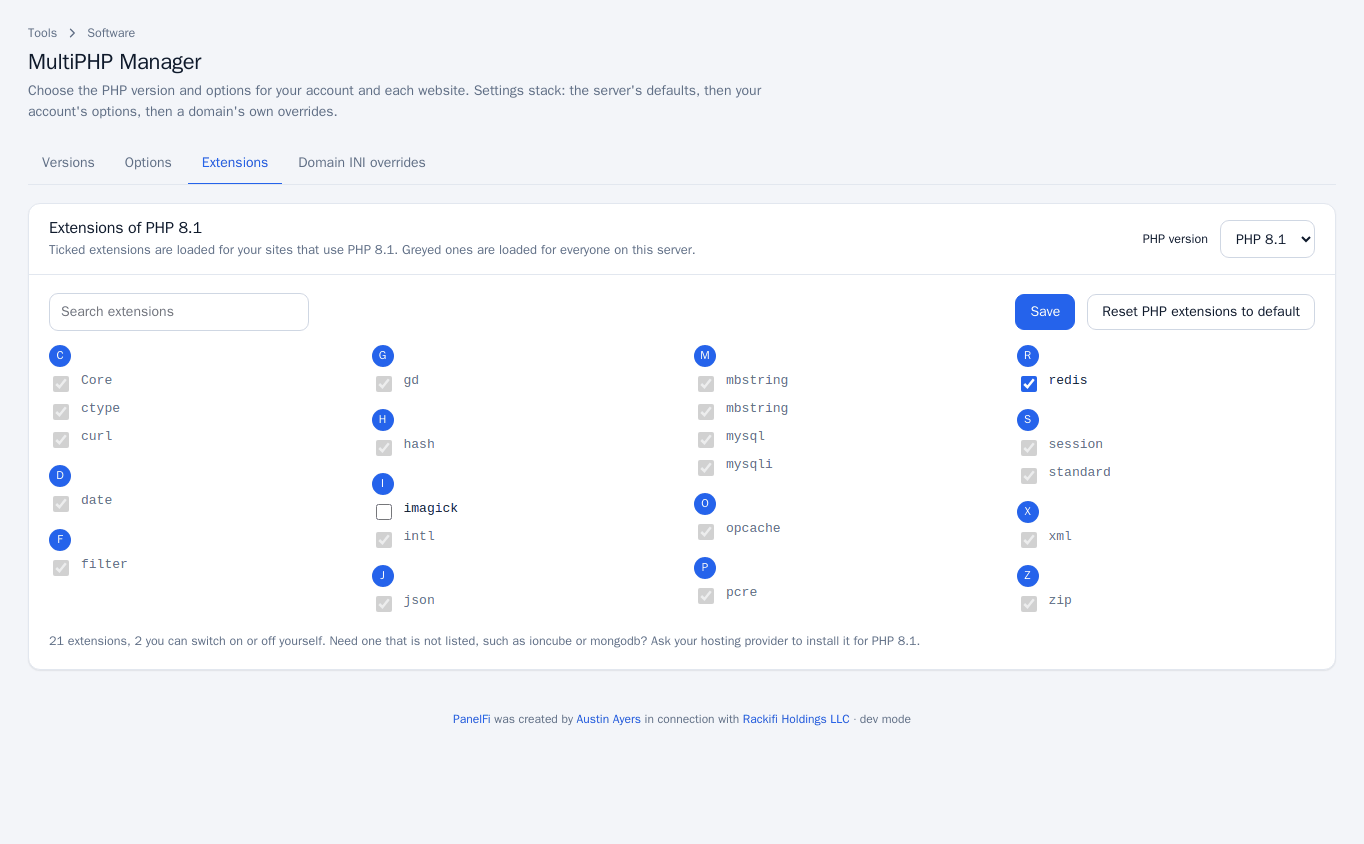
An extension that is not installed on the server is not listed. Ask your hosting provider to add it for that PHP version; it then appears here.
Override settings for one domain
The Domain INI overrides tab (also reachable as MultiPHP INI Editor) works like the Options tab but for a single website.
- Choose the website and press Show.
- Fill only the fields you want to change. The page lists the account options currently in effect beneath the form.
- Press Save overrides.
The overrides are written to the .user.ini file in the site's folder. Lines you added to that file yourself are kept.
Notes and limits
- You can only choose from the PHP versions installed on the server. The server administrator manages them (see PHP versions and settings in the server panel).
- Domain overrides win over your account's options, and account options win over the server's defaults.
- On a CloudLinux server, your host may also offer CloudLinux's PHP Selector. A version you choose here for a domain always takes priority over it.