Where to find itCustomer panel › Databases › Remote Database Access
Allow a remote host
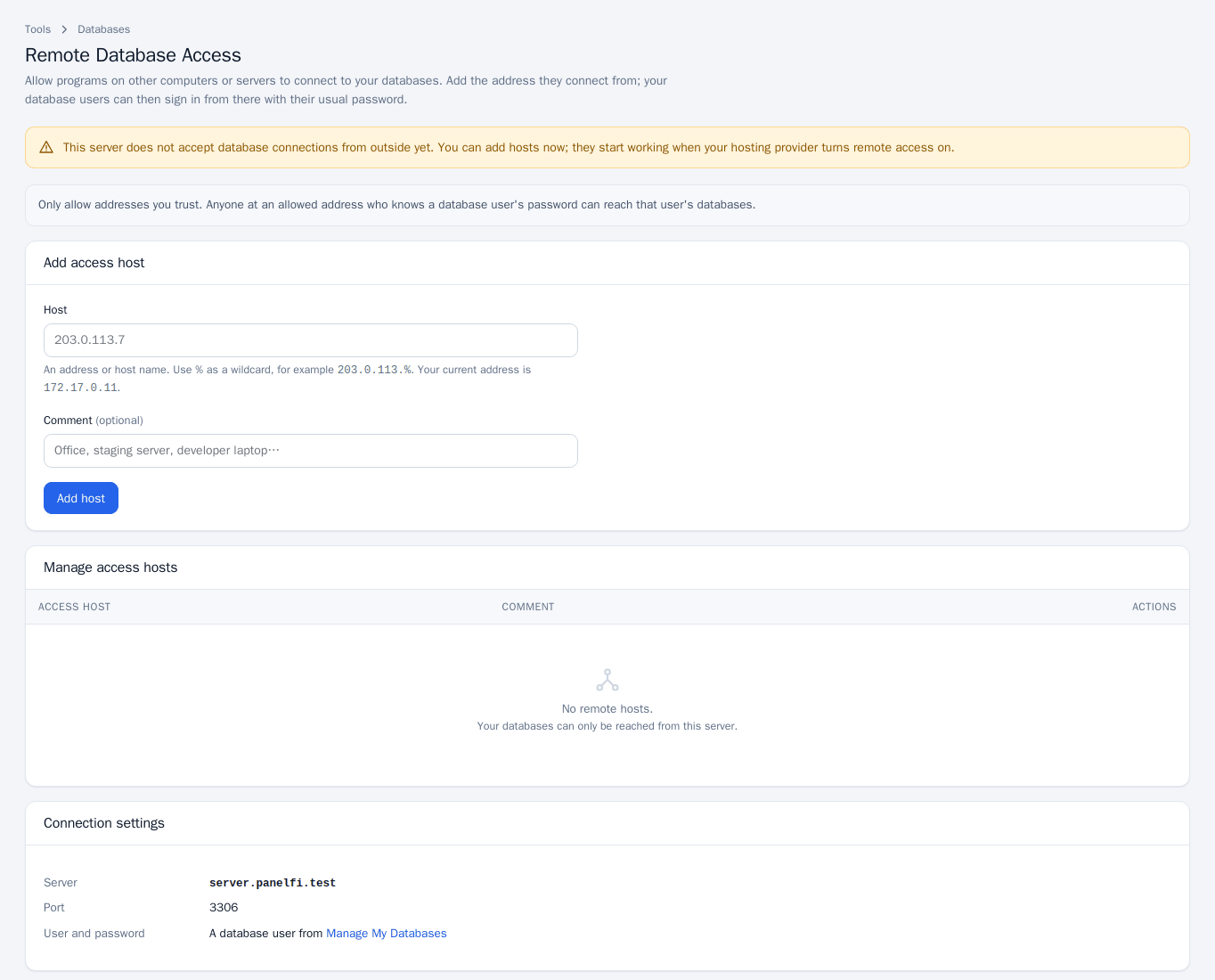
- Open Databases > Remote Database Access.
- Under Add access host, enter the Host: an address or host name. Use
%as a wildcard, for example203.0.113.%. The page shows your current address. - Optionally add a Comment such as “office” or “staging server”.
- Click Add host.
Your database users can then sign in from that address with their usual password.
Connect from the remote host
Use the Connection settings box: the server name, port 3306, and a database user from Manage My Databases with the password you set.
Manage and remove hosts
Hosts you added are listed under Manage access hosts, where you can edit the comment and use Delete. Hosts allowed by your hosting provider for every account are listed separately and cannot be changed here. With no hosts, your databases can only be reached from this server.
Notes and limits
- Only allow addresses you trust. Anyone at an allowed address who knows a database user’s password can reach that user’s databases.
- If the page says the server does not accept database connections from outside yet, you can add hosts now and they start working when your hosting provider turns remote access on.
- Remote Database Access can be switched off per package in the Feature Manager.