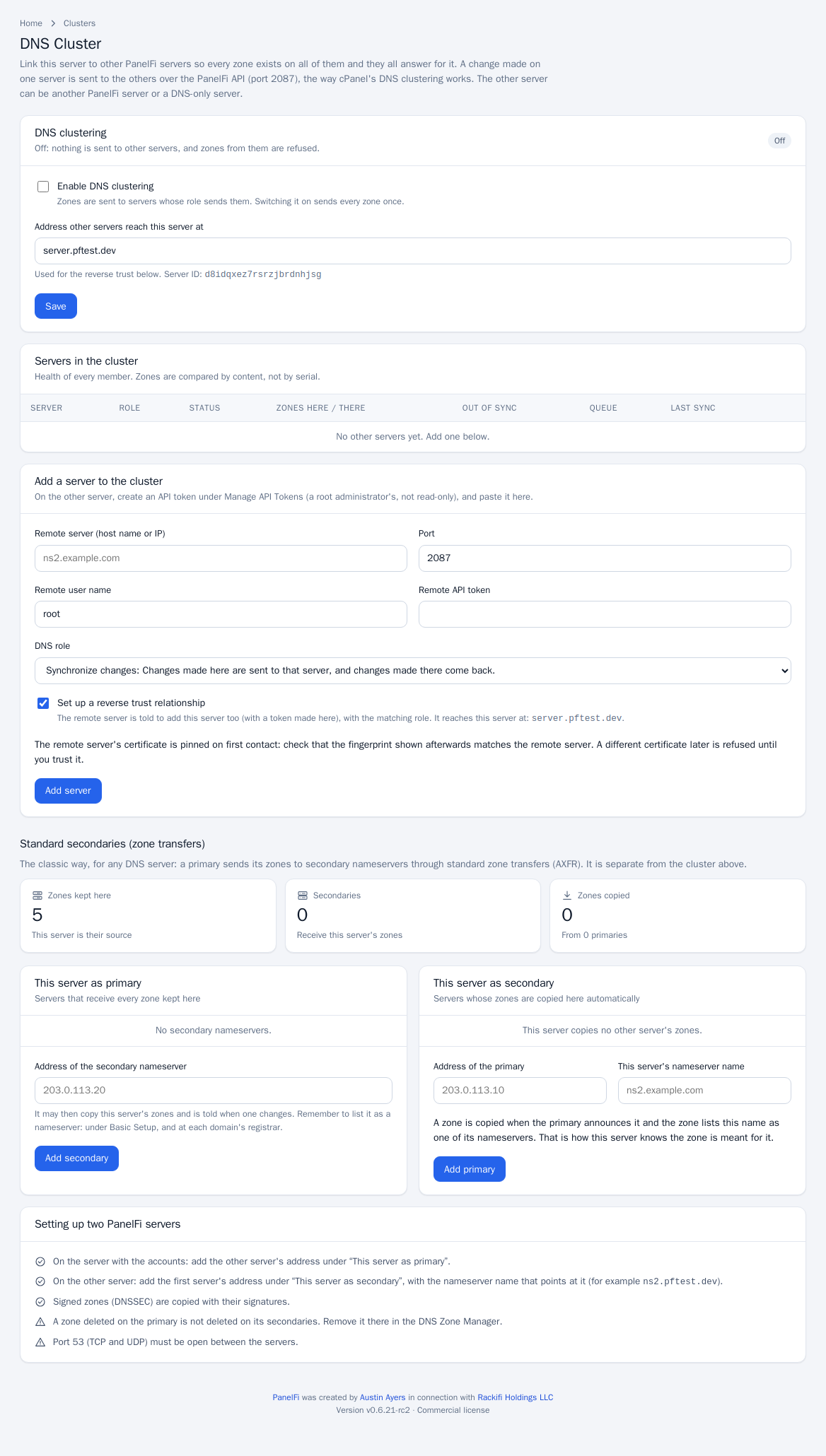
PanelFi can link servers into a DNS cluster the way cPanel does. Every zone is kept on every member, a change made on one server is sent to the others, and each of them answers for it. Customers keep their DNS when a server is down, and you can run dedicated nameservers next to your hosting server.
Open it under Server panel, Clusters, DNS Cluster.
There are two separate features on that page:
- DNS clustering (this document): servers talk over the PanelFi API on port 2087 and send whole zones.
- Standard secondaries (zone transfers): the older AXFR primary and secondary setup, for any DNS server. It is unchanged and independent of the cluster.
How it works
- Each server has a list of cluster members. For each member you choose a DNS role.
- Every change to a zone on a server (a new zone, a record added, edited or deleted, a zone reset, a domain or account removed, a restore, a domain moved) is put in a queue for each member that receives changes. The queue is stored in the panel database, so it survives restarts.
- Several changes to one zone become one push of the whole zone. A push takes about two seconds to start, so a burst of changes is sent once.
- If a member is down or refuses, the push is retried with growing delays (30 seconds, doubling, up to 15 minutes) and a new change to the zone brings the retry forward. The member catches up when it is back.
- Deleting a zone on a server deletes it on the members that receive its changes, as cPanel does.
- The members talk to each other's API:
GET/PUT/DELETE /api/v1/dns/zones/{zone},GET /api/v1/dns/zones,GET /api/v1/dns/cluster/hello, andPOST/DELETE /api/v1/dns/cluster/peersfor the reverse trust. They are for root administrators; a read-only token can read but not write.
Roles
The role is what this server does with that member.
| Role | This server sends its changes | This server takes the member's zones |
|---|---|---|
| Synchronize changes | yes | yes |
| Write-only | yes | no |
| Standalone | no (paused) | no |
| Download-only | no | yes |
Download-only is the other end of Write-only, so you rarely choose it yourself: when you add a member as Write-only with the reverse trust option, the member lists you as Download-only. Likewise Synchronize on one side is Synchronize on the other, and Standalone is Standalone.
A server that receives a push checks its own role for the sender. If the role does not take zones from the sender (Write-only or Standalone), the push is refused. A server that does not have the sender in its list refuses too: add each server to the other (the reverse trust does it in one step).
Topology
Link every server to every other (a full mesh), which is what cPanel recommends. A zone received from a member is written to the local DNS server and is not forwarded to other members, so there are no loops and nothing is sent in circles. With three servers A, B and C, link A-B, A-C and B-C. If B is not linked to C, a zone created on A reaches B and C, but a change made on B does not reach C.
Conflicts
A zone sent by a member never silently replaces a zone that already exists on the receiving server for a different purpose. The rule:
- The zone does not exist here: it is accepted and shown in the DNS Zone Manager as from cluster member <name>. It is not tied to an account.
- The zone exists here for a hosting account, or was created by hand on this server: the push is refused (HTTP 409) unless the two servers already share the zone, that is, one of them has already pushed it to the other, or the zone only exists here because a member sent it.
- The same goes for deletes: a zone that an account here owns is never deleted by a member.
A refused zone is listed under Conflicts on the receiving server and on the sending server, and the entry leaves the queue (it would fail again). Fix it by hosting the domain in one place, or by removing the zone on one side, then use Synchronize now. This is the same "zone already exists" conflict you know from cPanel.
If an account on one server owns a domain and the same domain was already pushed to the other server (for example you created the account first and the cluster copied the zone), both servers share the zone from then on, and changes made on either side go to the other.
Set up two PanelFi servers
You need port 2087/TCP open between the servers (in both directions when you use the reverse trust), and 53/TCP and 53/UDP open to the world on both.
- On server B, open Manage API Tokens and create a token. Do not tick read-only. Copy it. It must belong to a root administrator, not a reseller.
- On server A, open DNS Cluster. Under DNS clustering, set "Address other servers reach this server at" (A's host name, which B must be able to resolve and reach), tick Enable DNS clustering, and Save.
- Under Add a server to the cluster, enter B's host name or IP, port 2087, user
root, the token from step 1, and a role. Leave Set up a reverse trust relationship ticked and click Add server. - A connects to B over HTTPS, checks that the token is a root administrator's token that can write, and pins B's certificate (its SHA-256 fingerprint is shown in the table). Compare it with the fingerprint of B's panel certificate. With the reverse trust, A makes a token of its own for B, calls B's API to add A to B's list with the matching role, and B connects back to A to check it. B also switches clustering on.
- Every zone on A is queued for B. Open DNS Cluster on both servers to watch the Servers in the cluster table: role, reachable, zones here and there, zones out of sync (compared by content, not by serial), queue length, last sync and last error.
- Add the nameservers to your registrar and to Basic Setup (
ns1,ns2) as usual. The cluster keeps the zones equal; it does not change which nameservers a zone lists.
Without the reverse trust you do step 1 and 3 on both servers by hand, each side with a token from the other.
A PanelFi server and a DNS-only server
A DNS-only server is a dedicated nameserver, like cPanel's DNSONLY. It runs PowerDNS and the panel, and nothing else: no web server, mail, FTP, PHP, MariaDB, phpMyAdmin or Roundcube. It has no customer panel and no accounts, and it needs no license and never counts against one.
Install it on a fresh server (Ubuntu, Debian or AlmaLinux and its relatives):
cd /home && curl -o latest -L https://panelfi.net/latest && sh latest --dns-onlyor from an extracted release: ./install.sh --dns-only. The installer asks no questions, opens only 53/TCP, 53/UDP and 2087/TCP, writes "dns_only": true to /etc/panelfi/panelfi.json and the setting dns_only=1, and keeps the server DNS-only when you update it later. Its server panel offers only DNS tools, DNS Cluster, server settings, security, updates and the API; the accounts, packages, resellers, mail, web and backup tools are hidden and refused.
Then follow the steps for two PanelFi servers, with the hosting server as A and the DNS-only server as B. A DNS-only server's hostname must be a fully qualified name with at least two dots, like any PanelFi server. Use role Synchronize if the DNS-only server should also take zones created on it; use Write-only for a pure replica of the hosting server.
Changing the cluster
- Change role: pick another role in the table. With the reverse trust, the member is told and gets the matching role. Standalone pauses everything; going back to Synchronize or Write-only sends all zones again.
- Synchronize now: sends every zone of this server to that member and waits for the result.
- Pull zones: copies the zones the member has and this server lacks (for roles that take zones).
- Synchronize all DNS records (top of the page): Synchronize now for every member that receives zones.
- Remove from cluster: drops the member. Tick "also remove this server there" to have the member drop this server too (and revoke the token made for it). Zones already copied stay until you delete them in the DNS Zone Manager.
- Enable DNS clustering off: nothing is sent, changes from members are refused, and the queue waits.
If a member does not answer for more than 30 minutes, the administrator is told through the Contact Manager (event "A DNS cluster member stops answering"; switch it on under Notifications).
Certificates
The certificate of a member is pinned on first contact. If the panel certificate of a member changes, requests are refused with "the certificate of the remote server changed", the table shows the new fingerprint, and nothing is sent until you check it against the real server and click Trust the new certificate. The exception is a certificate from a public CA (for example Let's Encrypt) for the member's host name: when that renews, the pin follows it automatically. A self-signed certificate has to be trusted by hand when it is replaced.
Troubleshooting
- "could not connect" when adding: check the address and that 2087/TCP is open from this server to the other. From this server:
curl -k https://remote:2087/api/v1/version. - "does not accept the API token": the token is wrong, expired, or belongs to a reseller; create a root token without the read-only box.
- "the remote server could not set up the reverse trust": the remote server could not connect back. The address in "Address other servers reach this server at" must resolve on the remote server and 2087/TCP must be open towards this server.
- "this server does not know you" (403): the receiving server has no entry for the sender. Add it there, or use the reverse trust.
- "this server does not take zones from you" (403): the receiving server has the sender as Write-only or Standalone. Change the role there.
- Queue length does not go down: the table shows the last error. Unreachable servers are retried with growing delays; Synchronize now retries at once.
- Zones out of sync: use Synchronize now on the server that has the right version. A zone is "out of sync" when its records differ; the SOA serial is not compared.
- Conflicts: see the section above.
- Zone changes made directly in PowerDNS (not through the panel) are not seen by the cluster until Synchronize now.
Everything the cluster does is in the Audit Log (dns.cluster.*).
Standard secondaries (zone transfers)
Below the cluster, the same page still offers the standard primary and secondary arrangement over NOTIFY and AXFR, for secondaries that are not PanelFi servers (BIND, Knot, PowerDNS, a managed DNS provider). It is independent of the cluster.
How it works
DNS clustering uses the standard primary and secondary arrangement of the DNS protocol:
- The primary is the server where the zones are created and edited: the PanelFi server with your hosting accounts. It is the source of truth for those zones.
- A secondary holds read-only copies. It gets them from the primary and answers queries for them like any other nameserver. Changes are made on the primary only.
The two steps of keeping a zone in sync:
- NOTIFY. When a zone on the primary changes, the primary sends a NOTIFY message (UDP port 53) to every secondary you listed. This tells the secondary to refresh straight away instead of waiting for a timer.
- AXFR. The secondary then asks the primary for the full zone with a zone transfer (TCP port 53). The primary only answers zone transfer requests from the addresses you listed as secondaries (and from itself).
PanelFi runs PowerDNS. Making a server a primary switches its own zones from "Native" to "Master" so they announce changes and can be transferred. A secondary uses PowerDNS automatic secondary zones: when a NOTIFY arrives from a listed primary for a zone that names this server as one of its nameservers, the secondary creates the zone and transfers it. The secondary also re-checks every 15 seconds. DNSSEC-signed zones are copied with their signatures.
A server can be a primary for some servers and a secondary for others at the same time. Each side accepts up to 20 servers.
Before you start
- Open port 53 for both TCP and UDP between the servers (UDP for NOTIFY and queries, TCP for zone transfers), in both directions. The PanelFi installer opens 53/tcp and 53/udp on the server when
ufworfirewalldis active; if you use another firewall or a provider firewall, check it. See Firewall. - Each secondary needs a nameserver name (for example
ns2.example.com) with an A record pointing at its IP address. - Both servers need PowerDNS managed by PanelFi. If the page reports that this server's DNS software cannot be clustered, or that its PowerDNS configuration does not read the
pdns.dfolder yet, run the PanelFi installer once to upgrade (see Requirements and installation). - The secondary's address must not be the loopback or an empty address, and the same address cannot be both a secondary of this server and a primary for it.
Set up a cluster of two PanelFi servers
In this example server A (203.0.113.10, ns1.example.com) holds the hosting accounts, and server B (198.51.100.20, ns2.example.com) is the secondary.
1. List the second nameserver on server A
- On server A open Server Configuration > Basic Setup.
- Set Nameserver 2 to
ns2.example.comwith its IPv4 address198.51.100.20, and save. Every new zone now lists ns2 as a nameserver, and a zone only reaches the secondary if it lists the secondary's name. - For zones that already exist, add an NS record for
ns2.example.comat the zone apex in the DNS Zone Manager. PanelFi does not rewrite the NS records of existing zones.
2. Make server A the primary
- On server A open Clusters > DNS Cluster.
- Under This server as primary, enter server B's IP address in Address of the secondary nameserver and click Add secondary.
- PanelFi writes the cluster settings for PowerDNS, restarts it, switches your zones to Master and announces every zone to the secondary. If PowerDNS fails to start with the new settings, the previous settings are put back and the error is shown.
3. Make server B the secondary
- On server B open Clusters > DNS Cluster.
- Under This server as secondary, enter server A's IP address in Address of the primary and
ns2.example.comin This server's nameserver name, then click Add primary.
The name matters: a zone is copied when the primary announces it and the zone lists this name as one of its nameservers. That is how server B knows the zone is meant for it.
4. Send the zones and check
- On server A click Send every zone again if server B was set up after server A, so all existing zones are announced again.
- On server B reload the DNS Cluster page. Zones copied should show the zones, and the list Zones copied from primaries names them.
5. Delegate at the registrar
For each domain, set both nameservers at the registrar (ns1.example.com and ns2.example.com), with glue records if the nameservers are inside the domain itself. The secondary only helps once resolvers know about it.
Use a non-PanelFi secondary
Any DNS server that supports standard zone transfers can be a secondary: BIND, Knot, NSD, PowerDNS, a managed DNS provider that offers secondary zones, and so on.
- On your PanelFi primary, add the secondary's IP address under This server as primary as above. This permits zone transfers from that address and sends NOTIFY to it.
- On the other server, configure each zone as a secondary (slave) zone of the primary's IP address, and allow NOTIFY from it. For example in BIND:
zone "example.com" { type secondary; primaries { 203.0.113.10; }; file "example.com.zone"; }; - Make sure the zone lists the secondary's nameserver name as an NS record, and that port 53 TCP and UDP are open between the servers.
PanelFi does not create zones on a non-PanelFi secondary; the zone has to exist there, or be created by that software's own automatic-secondary feature. Transfer access is by IP address: the secondary must request transfers from the address you listed. The panel does not configure TSIG keys.
Check status
- Zones kept here: the zones this server is the source of. Secondaries: how many addresses receive them. Zones copied: zones this server holds as a secondary.
- Compare a zone's serial on both servers (replace the addresses and zone):
The third number of the SOA answer is the serial; it should match on both servers shortly after a change.dig +short SOA example.com @203.0.113.10 dig +short SOA example.com @198.51.100.20 - Each cluster change is written to the Audit Log.
Remove a server from the cluster
- Click Remove beside a secondary. It stops receiving this server's zones; zones it already copied stay there until removed on that server.
- On a secondary, remove the primary entry. It takes no new zones, and the zones already copied stay until you delete them in the DNS Zone Manager.
- With no secondaries left, the server returns its zones to Native.
Troubleshooting
| Symptom | What to check |
|---|---|
| A zone does not appear on the secondary | Does the zone list the secondary's nameserver name as an NS record, spelled exactly like This server's nameserver name? Is the primary's address on the secondary the one the NOTIFY arrives from (a server with several IPs may send from another one)? Then click Send every zone again on the primary. |
| Nothing arrives at all | Port 53 UDP and TCP must be open in both directions, including any provider-level firewall. Test with dig against each server from the other. |
| Zone transfer refused | The primary only permits transfers to the addresses listed under This server as primary. A secondary behind NAT or with a different outgoing address must be listed by the address it transfers from. |
| Serial differs after a change | The secondary refreshes on NOTIFY and every 15 seconds. Wait a minute, then re-send every zone. |
| A deleted zone is still on the secondary | Deleting a zone on the primary does not delete it on secondaries. Remove it there in the DNS Zone Manager (or on the non-PanelFi server). |
| Cluster change fails with "PowerDNS did not start" | PanelFi restored the previous settings. Check the address is a real server address, then see journalctl -u pdns on the server. |
Message that the configuration does not read pdns.d | Run the PanelFi installer once to upgrade the server's PowerDNS configuration. |
| Edits to a copied zone are lost | Copies are kept up to date by the primary. Make changes on the primary. |
Notes
- A cluster does not move websites, email or accounts; it only copies DNS zones.
- Set up the nameserver names and glue first: Nameservers and resolvers.