What it does
Three tools work together:
- Firewall manages open ports, a permanent allow list and block list, and the automatic "guard" that blocks addresses after repeated failed logins to SSH, mail, FTP, WordPress or the panels. The guard uses its own nftables table, beside any other firewall.
- Brute Force Protection is the panel's own sign-in lockout: after too many failed sign-ins to either panel or the API, an address or a login name is locked out.
- Unblock an IP Address lets you (and resellers, for their customers) look up an address and lift its block.
Block or allow an address by hand
- Open Security Center > Firewall.
- In the form under Blocked addresses, enter the Address or range, an optional Note and, for a temporary block, For (minutes).
- Click Block for a while, Block for good or Always let in.
Temporary blocks expire by themselves; permanent ones stay until you click Remove. Always-let-in addresses are never blocked, whatever they do. Add your office, monitoring and your other servers. The summary tiles show Blocked for now, Blocked for good and Always let in.
Automatic blocks (brute force detection)
Like CSF's login failure daemon, an address that fails too often is blocked from the whole server. Under Brute force detection:
- Choose which services to watch and, for each, the number of Failures and the Within (min) window. The shipped defaults are SSH 10 in 10 minutes, mail 15 in 10, FTP 10 in 10, WordPress 30 in 5 and the panels 10 in 15.
- Set Block for (minutes) (default 60) and Block for good after blocks in one day (default 5; 0 never).
- Click Save.
WordPress counts requests to wp-login.php and xmlrpc.php in each site's access log, since WordPress answers a wrong password with a normal page. Blocked addresses show the reason, the service, the login names tried and when the block ends; Unblock lifts one.
Open and close ports
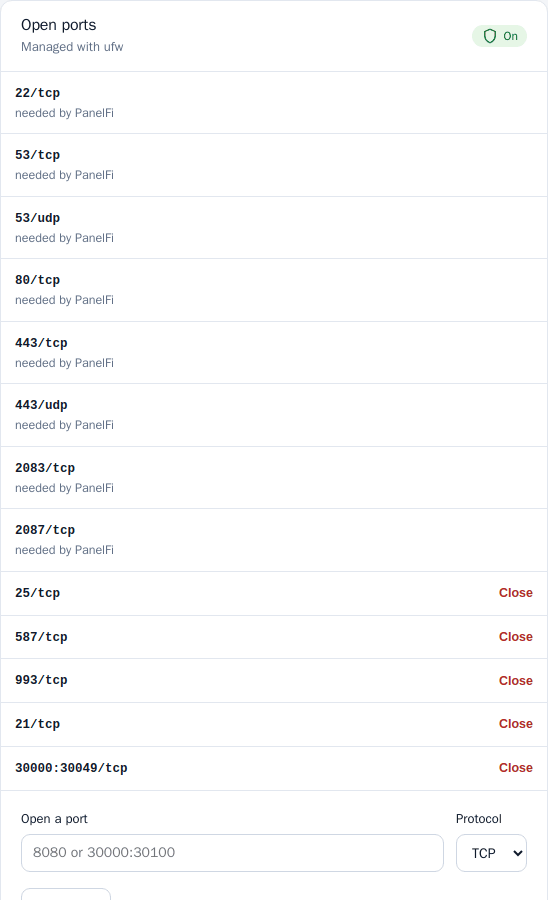
- Under Ports, if the port firewall is off, click Turn port firewall on. It closes every port except those PanelFi and its services use: SSH (22), websites (80, 443), DNS (53), both panels (2083, 2087), and mail and FTP where installed.
- To open another port, use Open a port: choose the port and protocol (TCP or UDP) and click Open port. Ports PanelFi needs are marked needed by PanelFi and cannot be closed; others have a Close button.
- Turn port firewall off reverts it. Blocked addresses stay blocked either way.
If SSH listens on a port other than 22, open that port immediately after turning the firewall on. If no firewall is installed, install ufw (Ubuntu, Debian) or firewalld (AlmaLinux, Rocky Linux, CentOS Stream) from a root shell first; PanelFi uses what is already installed. A firewall at your hosting provider works independently.
Brute Force Protection (panel sign-in)
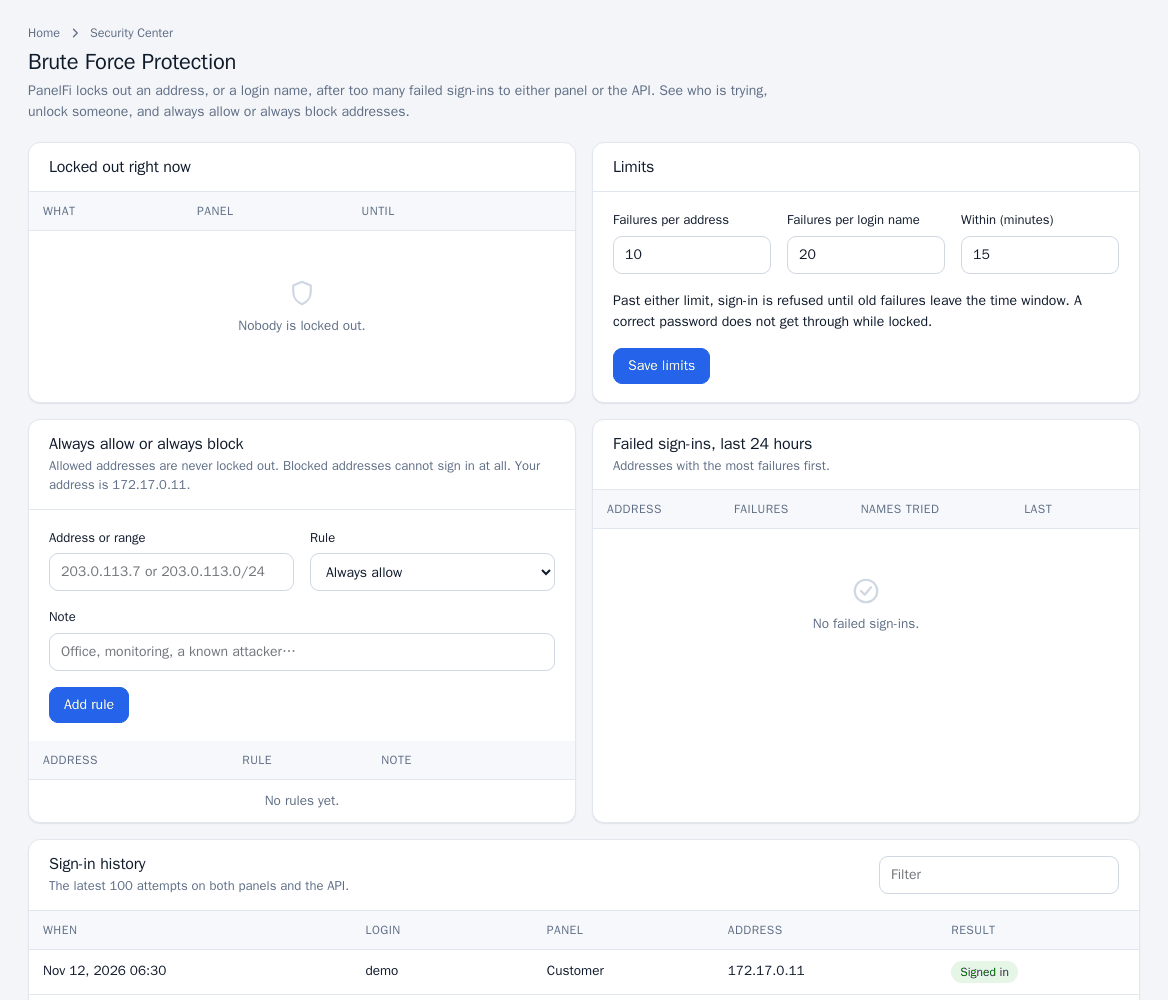
- Open Security Center > Brute Force Protection.
- Under Limits set Failures per address, Failures per login name and Within (minutes), then Save limits. Past either limit, sign-in is refused until old failures leave the window; a correct password does not get through while locked.
- Under Always allow or always block add an Address or range with the rule Always allow or Always block and an optional note, then Add rule. Allowed addresses are never locked out; blocked addresses cannot sign in at all.
- The Locked out right now table has an Unlock button per entry. Failed sign-ins, last 24 hours has a Block button per address, and Sign-in history lists the latest 100 attempts on both panels and the API.
Addresses on the Brute Force Protection allow list are also never blocked by the firewall guard.
Unblock an IP address
- Open Security Center > Unblock an IP Address (resellers see it too).
- Enter the customer's Address and click Look up. Customers can find theirs at a site such as whatismyip.com.
- If it is blocked you see why, for which service, and when the block ends. Click Unblock. If panel sign-in is locked for that address, that is lifted as well.
If the address is not blocked, the page says so and the problem is elsewhere (password, DNS or the customer's connection). Permanent blocks made by the administrator are removed on the Firewall page by root, not by resellers.
Notes and limits
- Your own address is shown on each page so you do not lock yourself out.
- Firewall and guard are server-wide; Brute Force Protection applies to the panels and API only.