MultiPHP Manager: default version
Domains that have no PHP version of their own use the server default. The table lists each installed version and how many domains use it; Server default (inherit) shows the domains following the default.
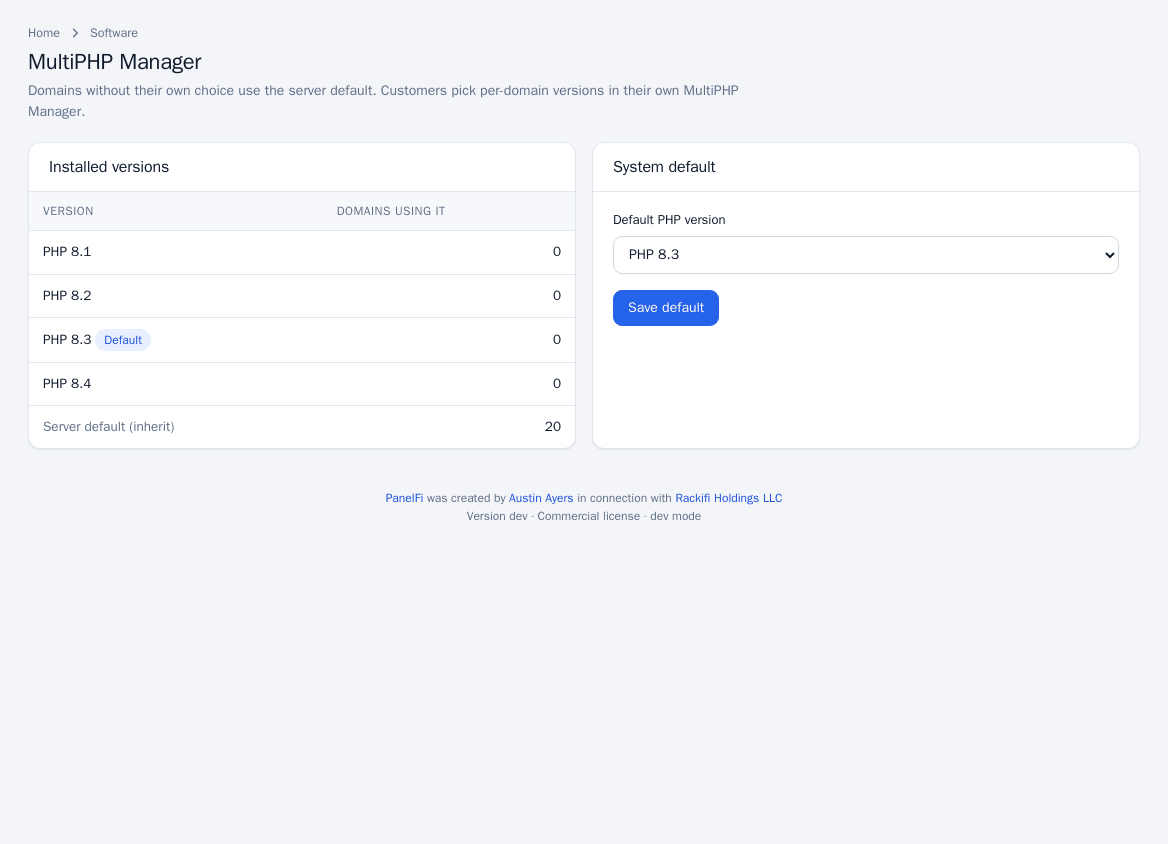
- Open Software > MultiPHP Manager.
- Under System default, pick the Default PHP version.
- Click Save default. The web configuration is rebuilt for every site.
Only versions installed for the active web server are offered. Customers choose per-domain versions in their own PHP selector.
MultiPHP INI Editor: server-wide settings
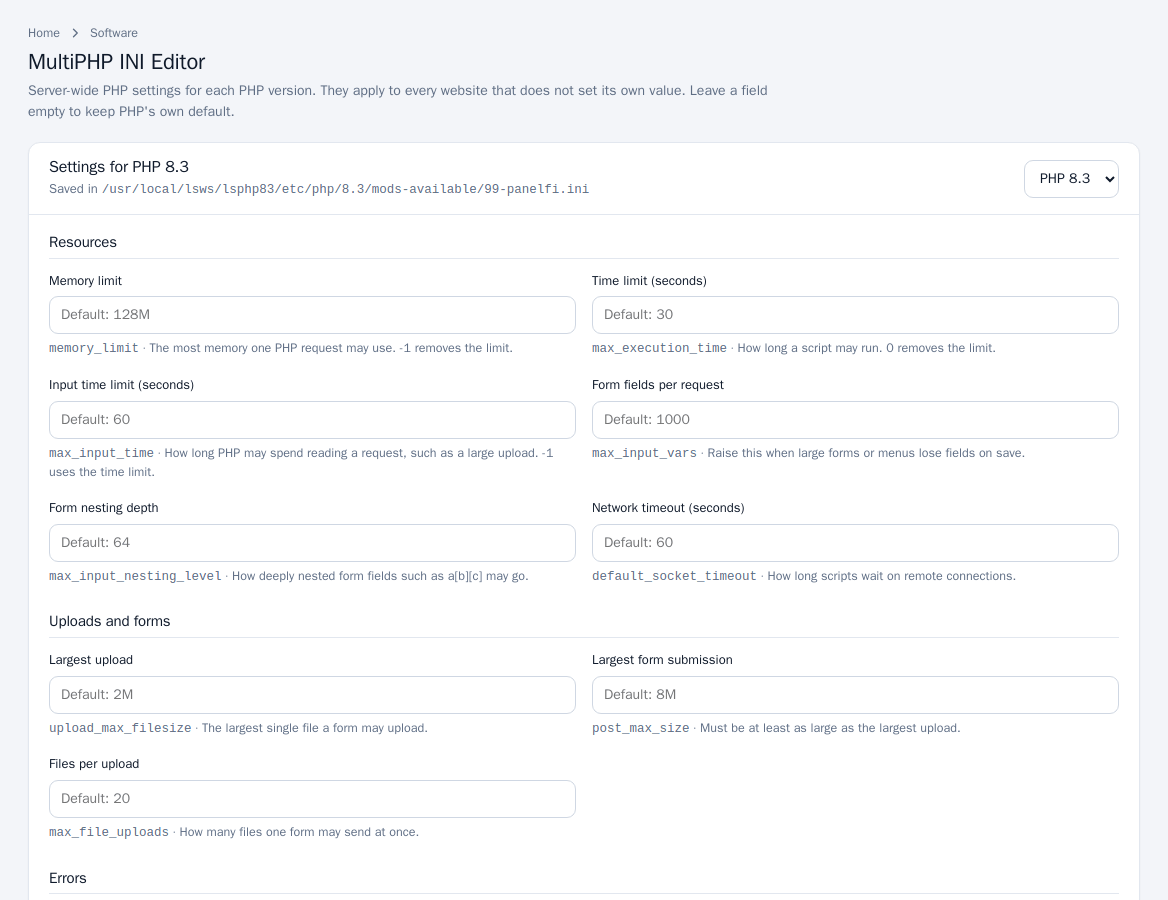
Values set here apply to every website that does not set its own value. Leave a field empty to keep PHP's own default.
- Open Software > MultiPHP INI Editor.
- Choose the PHP version and click Show. The page names the file the settings are saved in.
- Edit the fields, grouped as Resources (memory limit, time limit, form fields per request), Uploads and forms (largest upload, largest form submission, files per upload), Errors, Output (including time zone), Sessions, OPcache and Mail.
- Click Save settings. PHP restarts for every site; visitors do not notice.
The server editor also exposes a few system-level settings customers cannot change, such as Disabled functions, Open remote files (allow_url_fopen) and Announce the PHP version.
PHP Extensions
Shows what each PHP version has loaded and lets you add extensions from the operating system's packages, for example ImageMagick, Redis or the internationalisation functions.
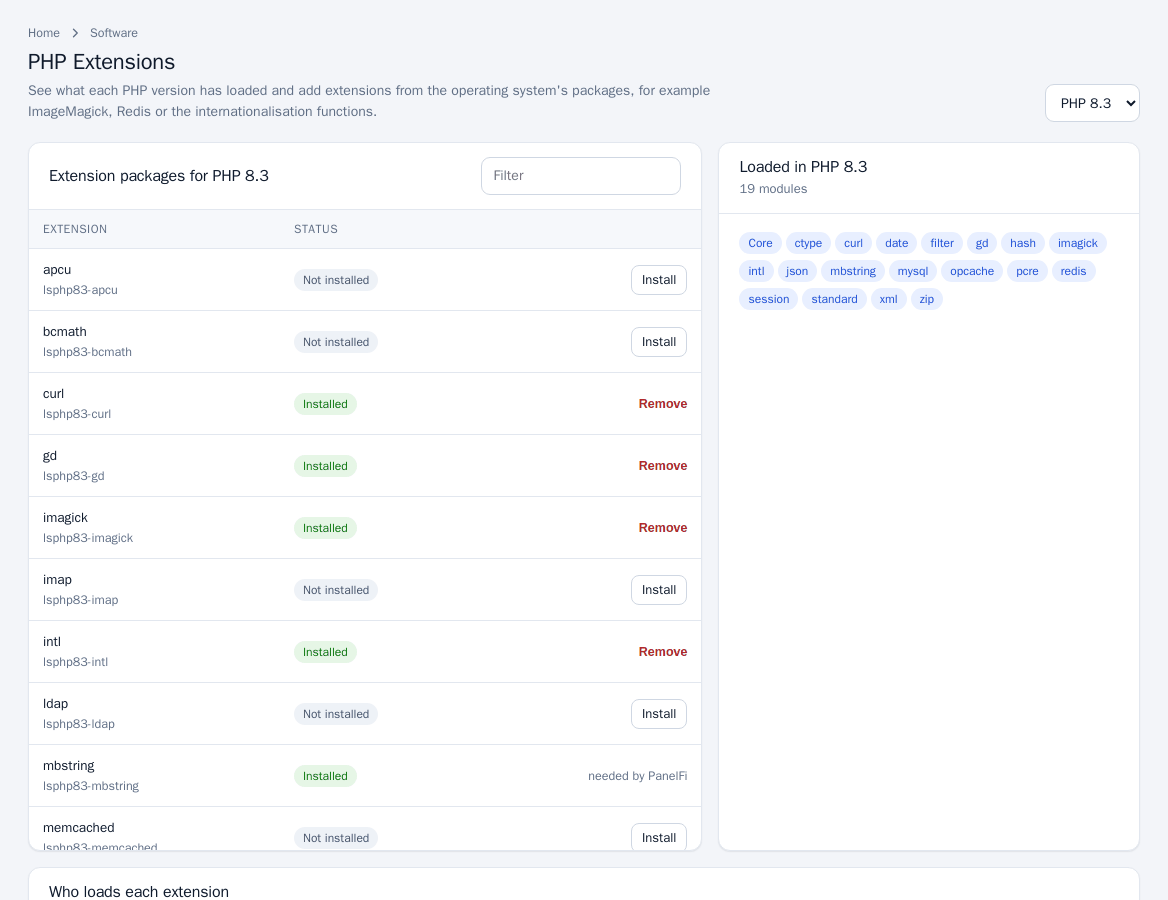
- Open Software > PHP Extensions and choose the PHP version.
- In Extension packages, click Install next to a missing extension, or Remove for one you added. Extensions marked needed by PanelFi cannot be removed.
- The Loaded in list shows the modules PHP actually loads.
Who loads each extension
An installed extension is either loaded for every site (Make optional switches it back) or optional: each customer ticks it under their MultiPHP Manager Extensions tab, like CloudLinux's PHP Selector. Use Load for everyone to enable an optional extension for all sites.
Notes and limits
- If no PHP version is installed for the active web server, the pages say so instead of showing settings. Switching web server changes which versions are available; see Web server.
- Account-level resource limits (memory, PHP requests at once) are set in Account isolation.
- On CloudLinux OS in CloudLinux mode, accounts can also use CloudLinux's PHP Selector (alt-php). Domains on the server's default PHP then run the version each account picks there; see CloudLinux OS.