Open the File Manager
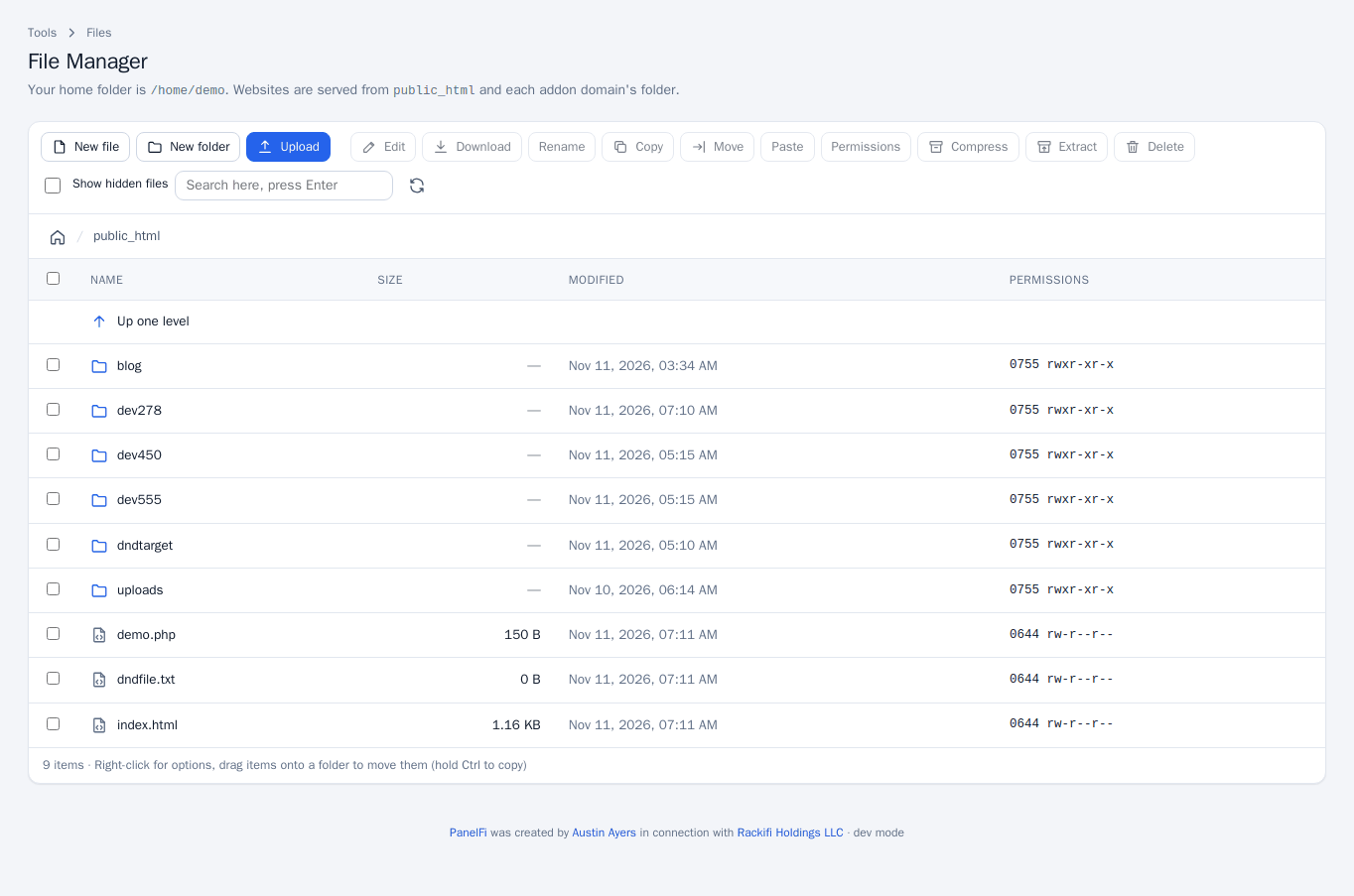
Choose Files > File Manager. It opens in public_html, the folder your main domain is served from. The path bar above the list shows where you are; click the home icon to go to your home folder, or any part of the path to jump back to it. Addon domains and subdomains have their own folders, listed under their names in Domains.
Create files and folders
- Open the folder where the new item should live.
- Click New file or New folder.
- Type the name and click Create.
Upload and download
- Open the destination folder and click Upload, or drag files from your computer onto the page.
- To download, tick a file and click Download.
There is a size limit per upload, set by your hosting provider. A transfer that is interrupted or larger than the limit is rejected. For big uploads use an FTP account instead.
Edit a file
Tick one file and click Edit. The code editor offers find (Ctrl+F), replace (Ctrl+H), go to line (Ctrl+G), undo and redo, a language selector, a font size and word wrap. Press Ctrl+S or Save changes to save. Files larger than 4 MB cannot be opened in the editor; download them instead.
Rename, copy, move and delete
- Rename: tick one item and click Rename (or press F2).
- Copy or Move: tick items, click the button and type the destination folder, a path inside your home folder such as
/public_html/backup. You can also select items, click Copy or Move, open another folder and click Paste. - Drag and drop: drag rows onto a folder, the “Up one level” row or the path bar to move them. Hold Ctrl while dropping to copy.
- Delete: tick items and click Delete. Deletion is permanent: there is no trash, and folders are removed with everything inside. If you need to get something back, use RapidBackup.
Permissions
Tick items and click Permissions, then enter the octal mode, for example 0644 for files and 0755 for folders. The list shows each item’s current mode in numeric and rwx form.
Compress and extract
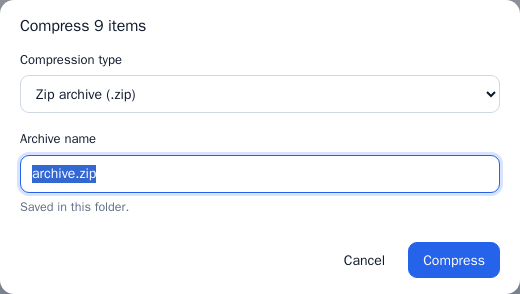
- Tick the items and click Compress.
- Choose a type (zip, tar.gz or tar), name the archive and click Compress. It is saved in the current folder.
- To unpack, tick an archive and click Extract, then choose the folder to extract into. Existing files with the same names are overwritten.
Search and hidden files
Type in the search box and press Enter to search by name below the current folder. Tick Show hidden files to see dotfiles such as .htaccess; the choice is remembered in your browser. Right-click an item for a context menu with the same actions.
Notes and limits
- You can only reach files inside your own home folder.
- The File Manager can be switched off per package in the Feature Manager (see Feature Manager).
- Some actions are unavailable while a search result is shown; clear the search first.