Where to find itCustomer panel › Email › Email Filters ; Customer panel › Email › Spam Filters
Email Filters
Filters sort mail as it arrives. They run in the order shown; the first one that moves, forwards or deletes a message ends the run.
Create a filter
- Open Email > Email Filters and click Create a filter. (You need at least one email account.)
- Enter a Name and choose the Email account, or Every email account.
- Set the condition: When the part of the message (From, To or Cc, Subject, Message text, or Any common header) Comparison (contains, does not contain, is exactly, begins with, ends with) Text. Capital and small letters are treated the same.
- Choose Then:
- Move to a folder: the folder is created when the first message is moved in.
- Delete it.
- Forward to an address: the message is forwarded and not kept in the mailbox.
- Reject with a message: the sender gets your text back and the message is not delivered.
- Mark as read.
- Keep in the inbox and stop.
- Click Create filter.
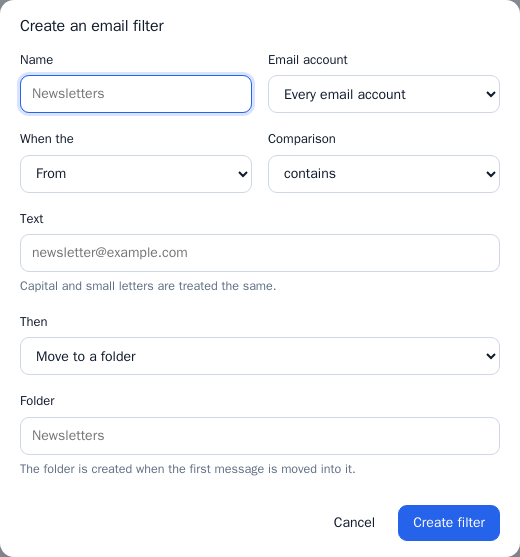
Delete a filter with Delete in the list. To keep a copy of your filters, use the download on the Backup page.
Spam Filters
Every incoming message gets a spam score from SpamAssassin. The settings on Email > Spam Filters apply to every email account of yours.
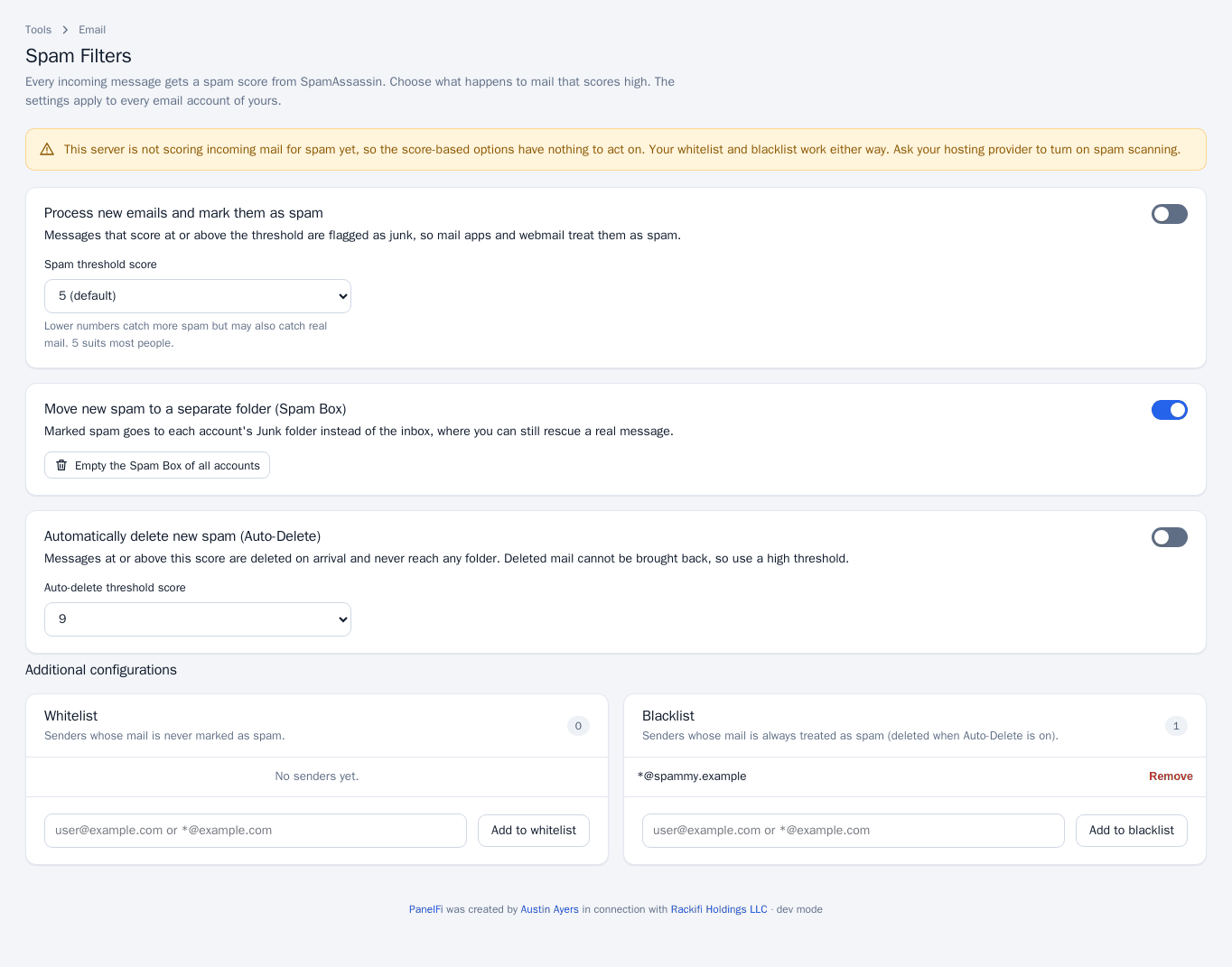
- Process new emails and mark them as spam: messages that score at or above the Spam threshold score are flagged as junk. Lower numbers catch more spam but may catch real mail; 5 suits most people.
- Move new spam to a separate folder (Spam Box): marked spam goes to each account’s Junk folder instead of the inbox. Empty the Spam Box of all accounts clears them.
- Automatically delete new spam (Auto-Delete): messages at or above the Auto-delete threshold score are deleted on arrival and cannot be brought back, so use a high threshold.
- Whitelist: senders whose mail is never marked as spam. Blacklist: senders always treated as spam (deleted when Auto-Delete is on). Add an address like
[email protected]or a whole domain like*@example.com, and click Remove to take one out.
Notes and limits
- If the page warns that the server is not scoring mail for spam, ask your hosting provider to turn on spam scanning. The score-based options do nothing until then; the whitelist and blacklist work either way.
- Email Filters and Spam Filters can each be switched off per package in the Feature Manager.