Before you start
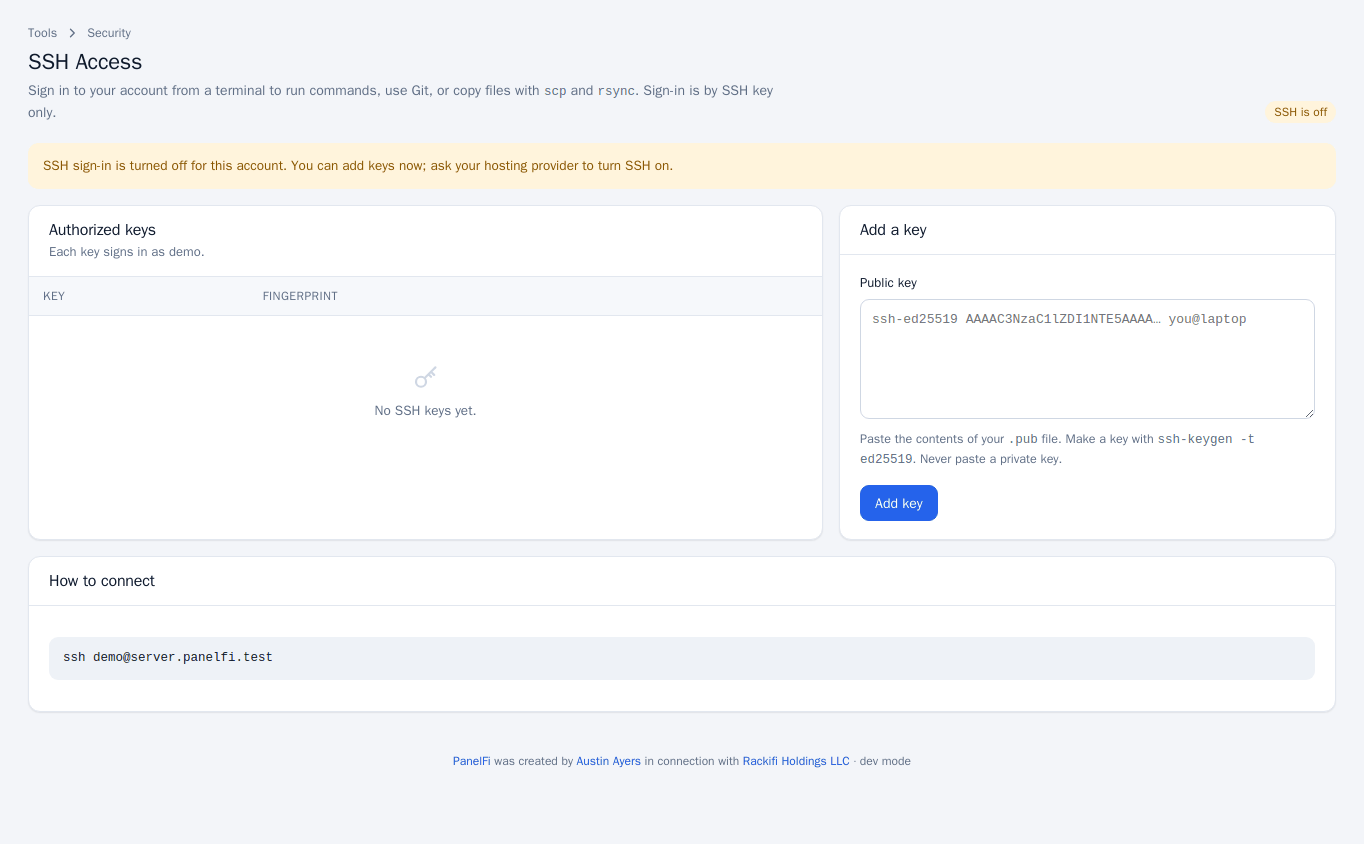
Shell access is switched on per account by your hosting provider (in the server panel, under Manage Shell Access). While it is off, the SSH Access page says so and the Terminal shows a notice that shell access is off. You can still add keys while SSH is off; they work once it is turned on. Both tools can also be switched off for a package in the Feature Manager.
Add an SSH key
Sign-in is by SSH key only; passwords are not accepted.
- On your computer, make a key if you do not have one:
ssh-keygen -t ed25519. - Open SSH Access. Under Add a key, paste the contents of your
.pubfile into Public key. Never paste a private key. - Press Add key. The key appears under Authorized keys with its name, type and fingerprint. A key added with restrictions is marked restricted.
To revoke a key, press Remove on its row.
Connect over SSH
The How to connect box shows the exact command for your account, in the form:
ssh yourusername@your-server-hostnameThe same login works for scp and rsync.
Use the browser Terminal
Open Terminal for a command line in your hosting account, for tools such as Git, Composer or WP-CLI. It can do what your account can do and nothing else on the server. If the connection drops, press Connect again. The Terminal uses the same permission as SSH Access.
Notes and limits
- You act as your own account user only; you cannot reach other accounts or change server settings.
- To use Git over SSH to push to a repository on the server, see Git Version Control.