What it does
Every night PanelFi can save each account: files, mail, databases, email accounts, DNS zones and settings. Each backup is one file per account, <backup folder>/<date>/<account>.tar.gz (<account>.incr.tar.gz for an incremental one), readable by root only.
- Full or incremental backups, with daily, weekly and monthly retention.
- Remote destinations: every backup is copied to SFTP servers and S3-compatible storage, so losing a server or a disk does not lose the backups.
- Restores: a whole account (even a terminated one), just its files and databases, or every account at once on a fresh server.
- RapidBackup: customers restore for themselves, without a ticket.
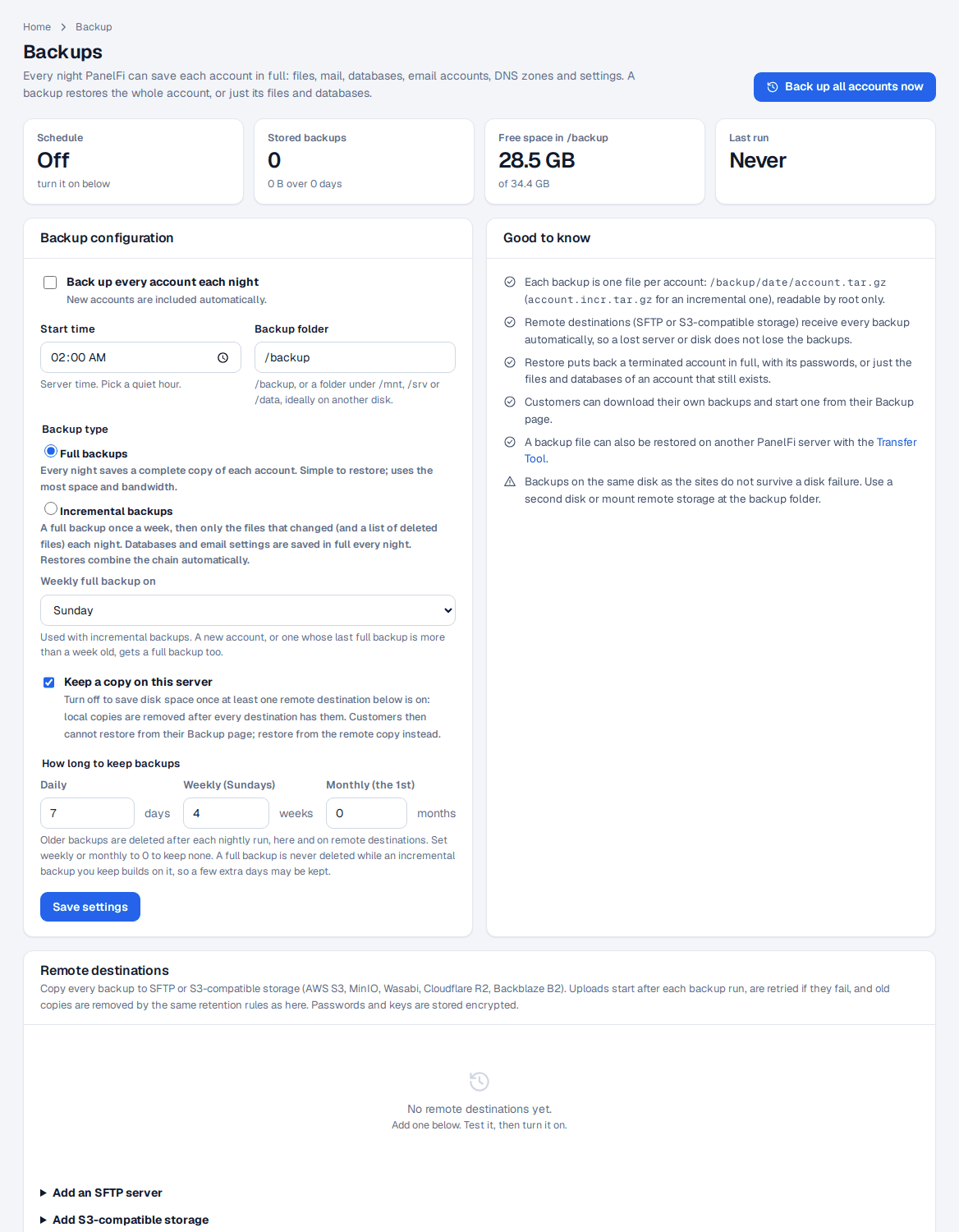
Turn on nightly backups
- Open Backup > Backup Configuration.
- Under Backup configuration, enable Back up every account each night. New accounts are included automatically.
- Set the Start time (server time; pick a quiet hour) and the Backup folder:
/backup, or a folder under/mnt,/srvor/data, ideally on another disk. - Choose the Backup type (next section).
- Under How long to keep backups set Daily (days), Weekly (Sundays) (weeks) and Monthly (the 1st) (months). Older backups are deleted after each nightly run, here and on remote destinations. Set weekly or monthly to 0 to keep none.
- Click Save settings.
The summary shows the schedule and next run, how many backups are stored and their size, free space in the backup folder, and the last run. Back up all accounts now starts a run immediately; its progress and log appear on the page.
Full or incremental backups
| Backup type | How it works | Best for |
|---|---|---|
| Full backups | Every night saves a complete copy of each account. | Small servers; the simplest restores. |
| Incremental backups | A full backup once a week (on the day set in Weekly full backup on), then each night only the files that changed and a list of deleted files. Databases and email settings are saved in full every night. | Large accounts and remote storage: much less space and upload bandwidth. |
Restores combine the chain automatically: you pick a day, and PanelFi applies the full backup and the incremental ones after it. A new account, or one whose last full backup is more than a week old, gets a full backup that night. A full backup is never deleted while an incremental backup you keep builds on it, so a few extra days may be kept.
Remote destinations: SFTP and S3-compatible storage
Under Remote destinations on the Backup Configuration page, add as many destinations as you like. After every backup run the new archives are uploaded to each destination that is on, failed uploads are retried, and old copies are removed by the same retention rules. Passwords and keys are stored encrypted.
Add an SFTP server
- Under Add an SFTP server fill in Name, Host, Port, User, and either a Password or a Private key (without a passphrase).
- Set the Folder on the server. It is created if missing; backups go in dated sub-folders.
- Click Add SFTP server, then Test. The test connects, writes, lists, reads and deletes a small file. The server's host key is pinned on the first test, and a changed key is refused afterwards (Forget host key clears it after a reinstall).
- Click Turn on.
Add S3-compatible storage
- Under Add S3-compatible storage fill in Name, Endpoint, Region, Bucket, an optional Folder in the bucket, the Access key and Secret key.
- Tick Use path-style addressing for MinIO and most self-hosted storage; leave it off for AWS S3, Wasabi and Backblaze B2. For Cloudflare R2 use the endpoint
https://ACCOUNT.r2.cloudflarestorage.comand the regionauto. - Click Add storage, then Test, then Turn on.
The table shows each destination's status, when it last received an upload, and how many files and how much space it holds. Backups there lists what is stored on it.
Keep a copy on this server: once at least one destination is on, you can turn this off to save disk space. Local copies are then removed after every destination has them. Customers then cannot restore from their Backup page; restore from the remote copy instead.
Restore an account
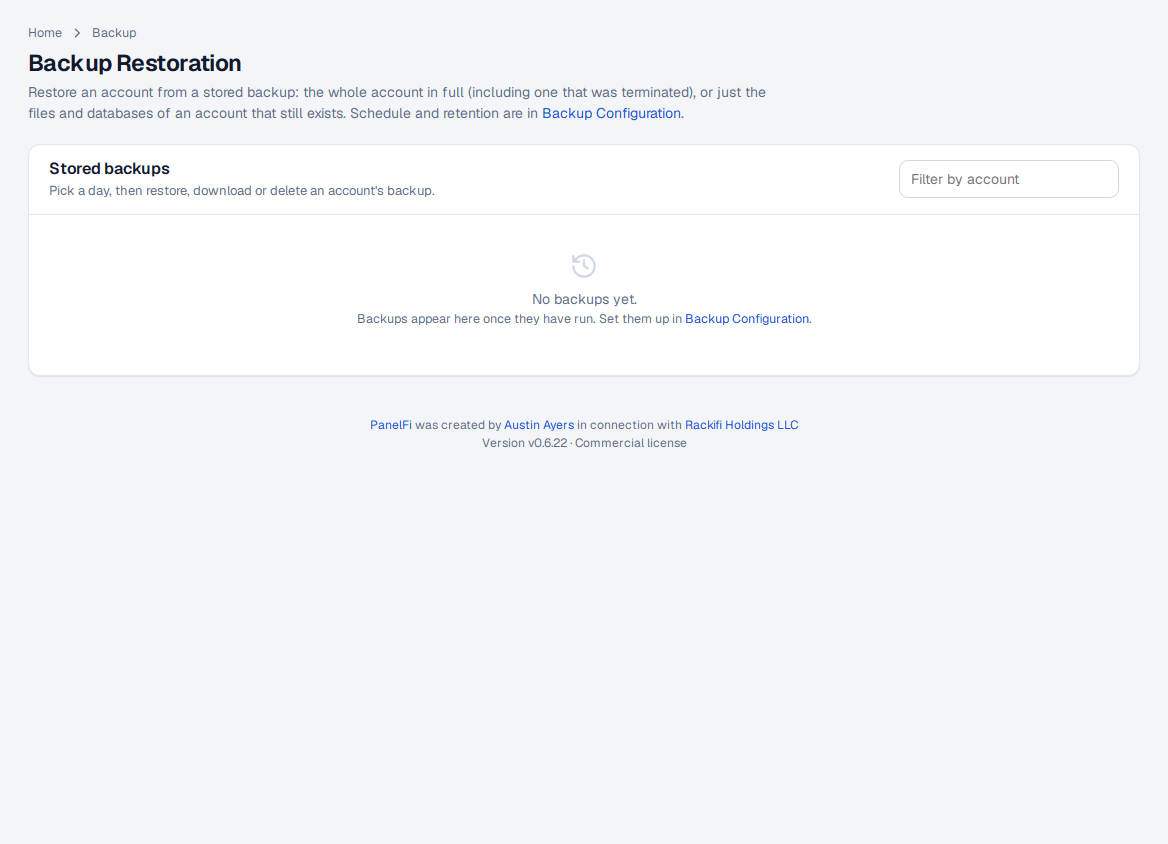
- Open Backup > Backup Restoration. Stored backups lists days; expand a day to see each account with its size, type (full or incremental) and time saved.
- Click Restore on the account. PanelFi opens the same review page the Transfer Tool uses, showing what is in the backup.
- If the account was terminated, choose the package and options and click Restore account. The backup holds the account's password, so it keeps working unless you set a new one.
- If the account still exists, the page offers Restore into <account>: tick Files and mail (files from the backup replace current ones; files added since are kept) and/or Databases (each database is emptied and loaded again), then Restore.
To restore from a remote destination, use Restore from remote storage on the same page: pick a destination to browse the backups stored there, then click Restore on one. PanelFi downloads it, and any backups it builds on, and opens the same review page.
To bring back domains, email accounts, DNS records and passwords of an existing account as well, terminate the account first and restore the whole backup. You can also Download or Delete a stored backup. A backup file can be restored on another PanelFi server with the Transfer Tool (see Migration and transfers).
Disaster recovery: restore every account on a new server
If a server is lost, its accounts can be rebuilt on a new one from a remote destination:
- Install PanelFi on the new server (see Requirements and installation) and sign in.
- In Backup > Backup Configuration, add the same SFTP or S3 destination and press Test.
- In Backup > Backup Restoration, under Restore from remote storage, pick the destination and click Restore every account.
- PanelFi restores the newest backup of every account it finds there, in the background, with their passwords. Accounts that already exist on the new server are skipped. The page shows how many were restored, skipped and failed.
- Point DNS (or the old IP address) at the new server. AutoSSL issues certificates again by itself.
Test this once before you need it: restore one account from your remote destination on a spare server.
RapidBackup: customers restore for themselves
RapidBackup lets customers bring back their whole account, or just files, databases, email accounts, DNS zones or cron jobs, from the server's backups through a restore queue (like JetBackup), without opening a ticket. It uses the nightly backups you configure here: restore points appear as they are made, and the daily retention decides how many are available. Customers can also create a restore point on demand. See Customer backups and RapidBackup. Whether a customer sees it is controlled per package in the Feature Manager.
Notes and limits
- Customers can download their own backups and start one from their Backup page (while local copies are kept).
- Watch the free-space figure on the page; incremental backups need far less space than full ones.
- Backups on the same disk as the sites do not survive a disk failure. Use a second disk, a remote destination, or both.