Where to find itServer panel › Customization › Branding
Company details
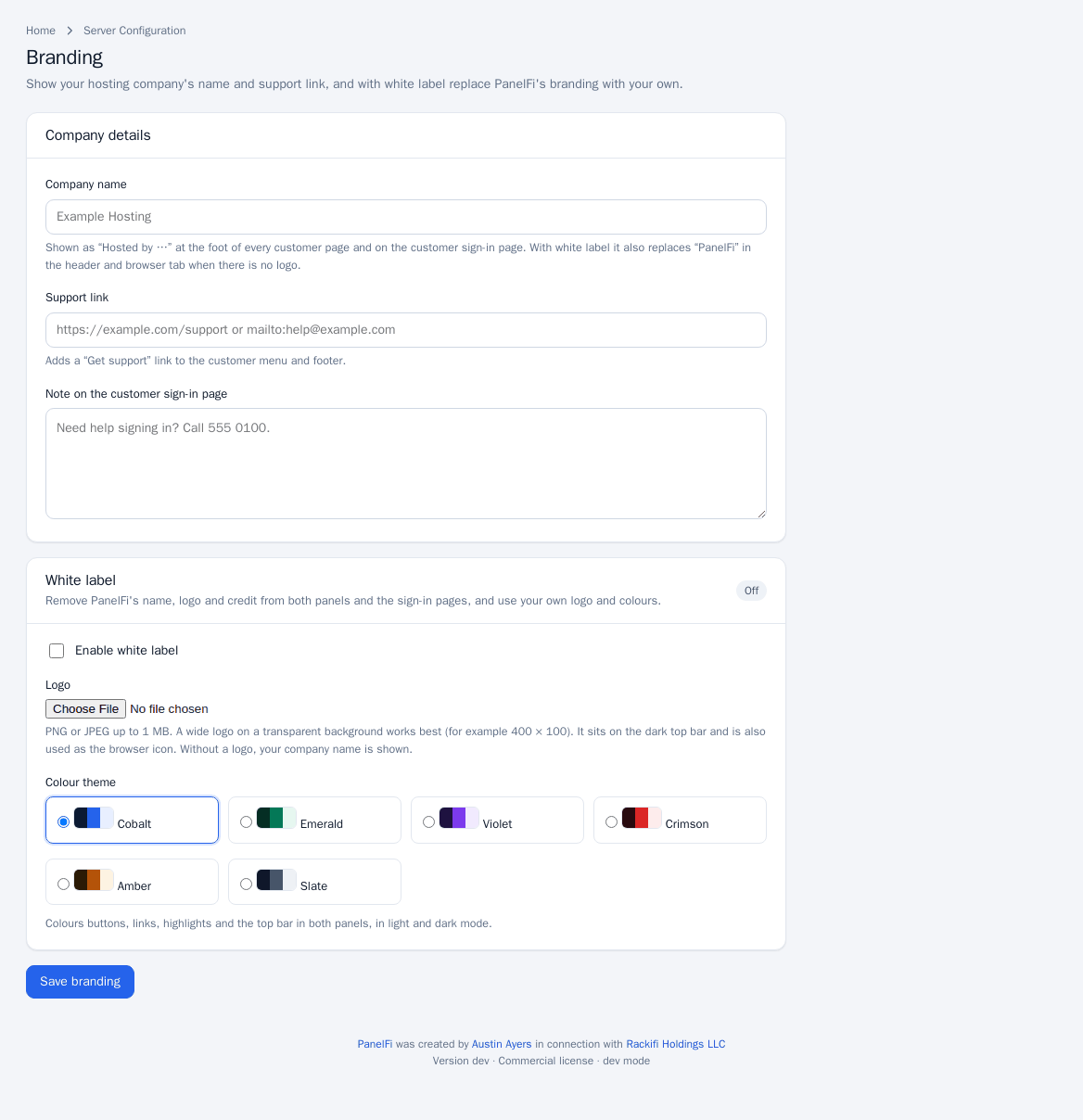
These work on every edition. Open Customization > Branding and fill in:
- Company name (up to 60 characters): shown as "Hosted by ..." at the foot of every customer page and on the customer sign-in page. With white label it also replaces "PanelFi" in the header and browser tab when there is no logo.
- Support link: must start with
https://,http://ormailto:. It adds a "Get support" link to the customer menu and footer. - Note on the customer sign-in page (up to 300 characters).
Click Save branding. Customers see the change the next time they load a page.
White label (Professional)
White label removes PanelFi's name, logo and credit from both panels and the sign-in pages.
- Make sure the server has a Professional license (Licensing and updates). Without it the white-label controls are locked.
- Set Enable white label to On.
- Upload a Logo: PNG or JPEG up to 1 MB. A wide logo on a transparent background works best (for example 400 x 100). It sits on the dark top bar and is also used as the browser icon. Without a logo, your company name is shown. Use Remove this logo to delete it.
- Choose a Colour theme: Cobalt, Emerald, Violet, Crimson, Amber or Slate. It colours buttons, links, highlights and the top bar in both panels, in light and dark mode.
- Click Save branding.
Notes
- Branding is one setting for the whole server. Resellers do not have their own branding page; their customers see the server's branding.
- Your settings are kept if the license lapses; they simply stop taking effect and PanelFi's branding returns until a Professional license is active again.