Backup: download and restore parts
Open Files > Backup. The page has three areas.
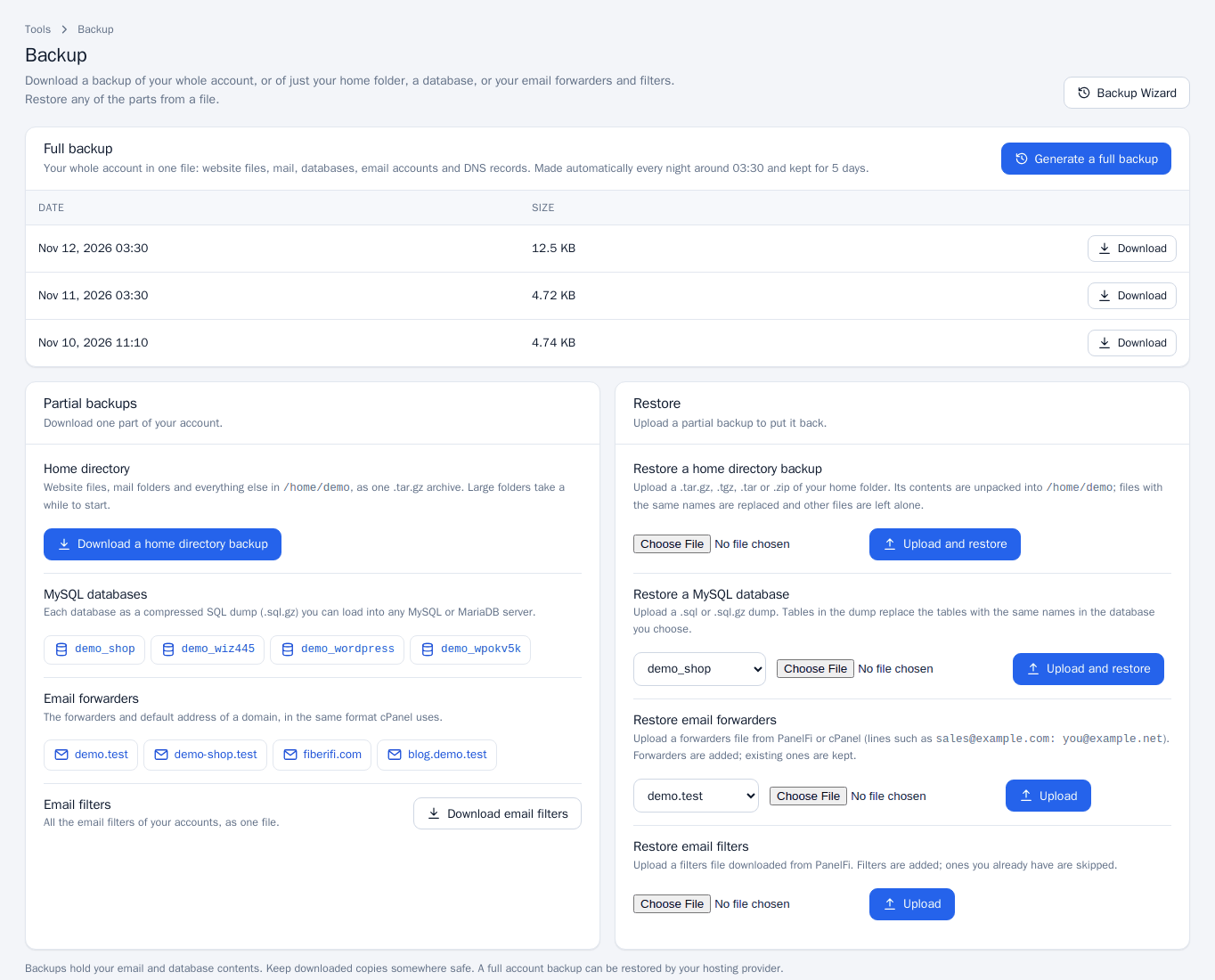
Full backup
A full backup is your whole account in one file: website files, mail, databases, email accounts and DNS records. The server makes one every night (the time and number of days kept are shown on the page) and lists them with a Download button. If your provider allows it, Generate a full backup makes one now; it is created in the background and appears in the list when ready. If the button is not there, full backups are made and restored by your hosting provider.
Partial backups
- Home directory: Download a home directory backup gives a
.tar.gzof your home folder (website files and mail folders). Large folders take a while to start. - MySQL databases: click a database name to download it as a compressed SQL dump (
.sql.gz). - Email forwarders: click a domain to download its forwarders and default address in the format cPanel uses.
- Email filters: Download email filters gives one file with the filters of all your accounts.
Restore from a file
- In Restore, pick the part: home directory, MySQL database, email forwarders or email filters.
- For a database or forwarders, choose which database or domain it goes to.
- Choose the file and click Upload and restore.
A home directory backup (.tar.gz, .tgz, .tar or .zip) is unpacked into your home folder: files with the same names are replaced and other files are left alone. A database dump (.sql or .sql.gz) replaces tables with the same names. Forwarders are added and existing ones are kept. Filters are added and ones you already have are skipped.
Backup Wizard
The Backup Wizard walks through the same actions in three steps. Click Backup Wizard on the Backup page (or open it from the menu).
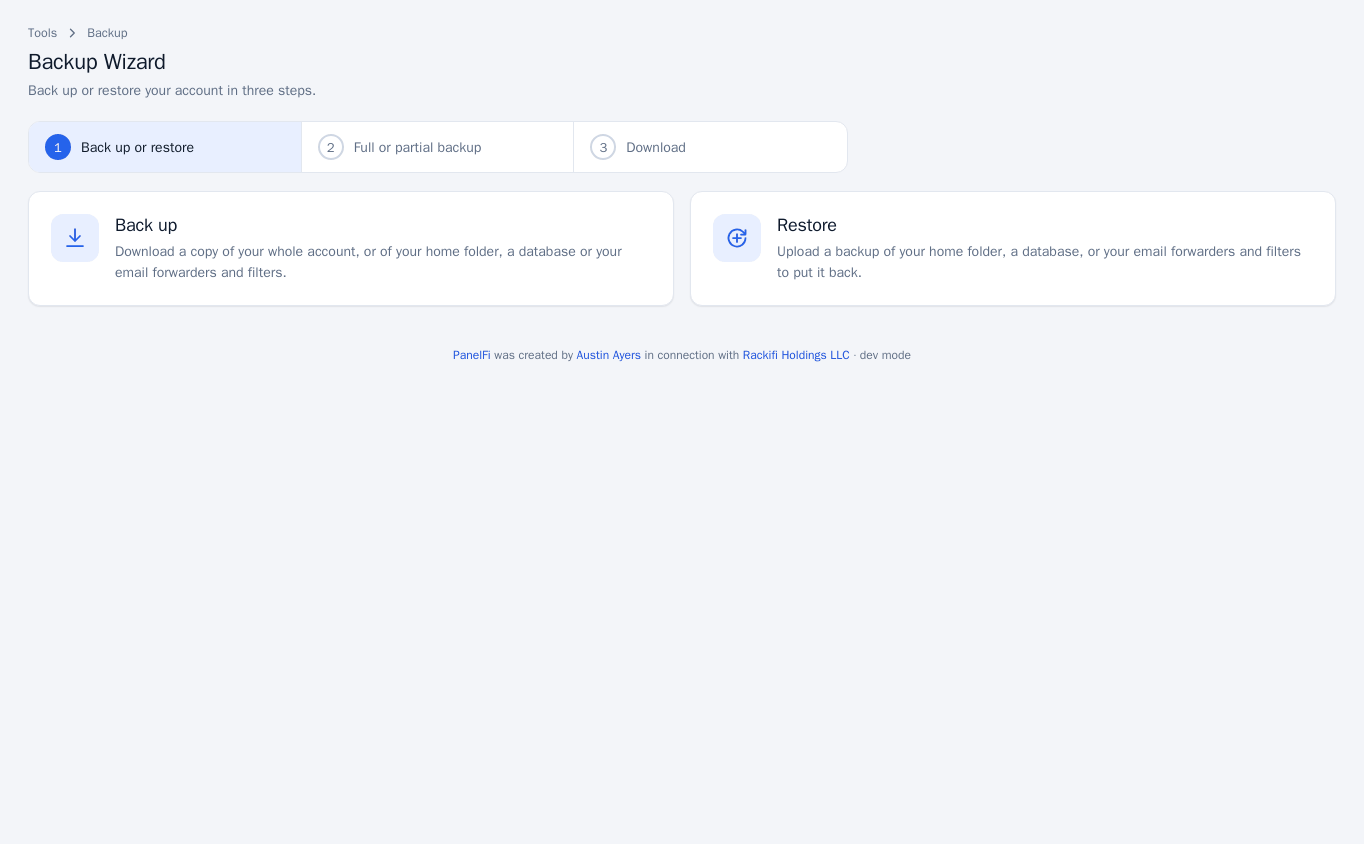
- Choose Back up or Restore.
- Choose Full backup or a partial one (home directory, MySQL databases, email forwarders and filters).
- Download the backup, or upload the file to restore it.
RapidBackup
RapidBackup restores from the server’s backups, so you do not need to have downloaded anything. Open Files > RapidBackup. The tabs choose what you restore: Full account, Home files, Databases, Email accounts, DNS zones and Cron jobs. The Queue tab shows your recent restores.
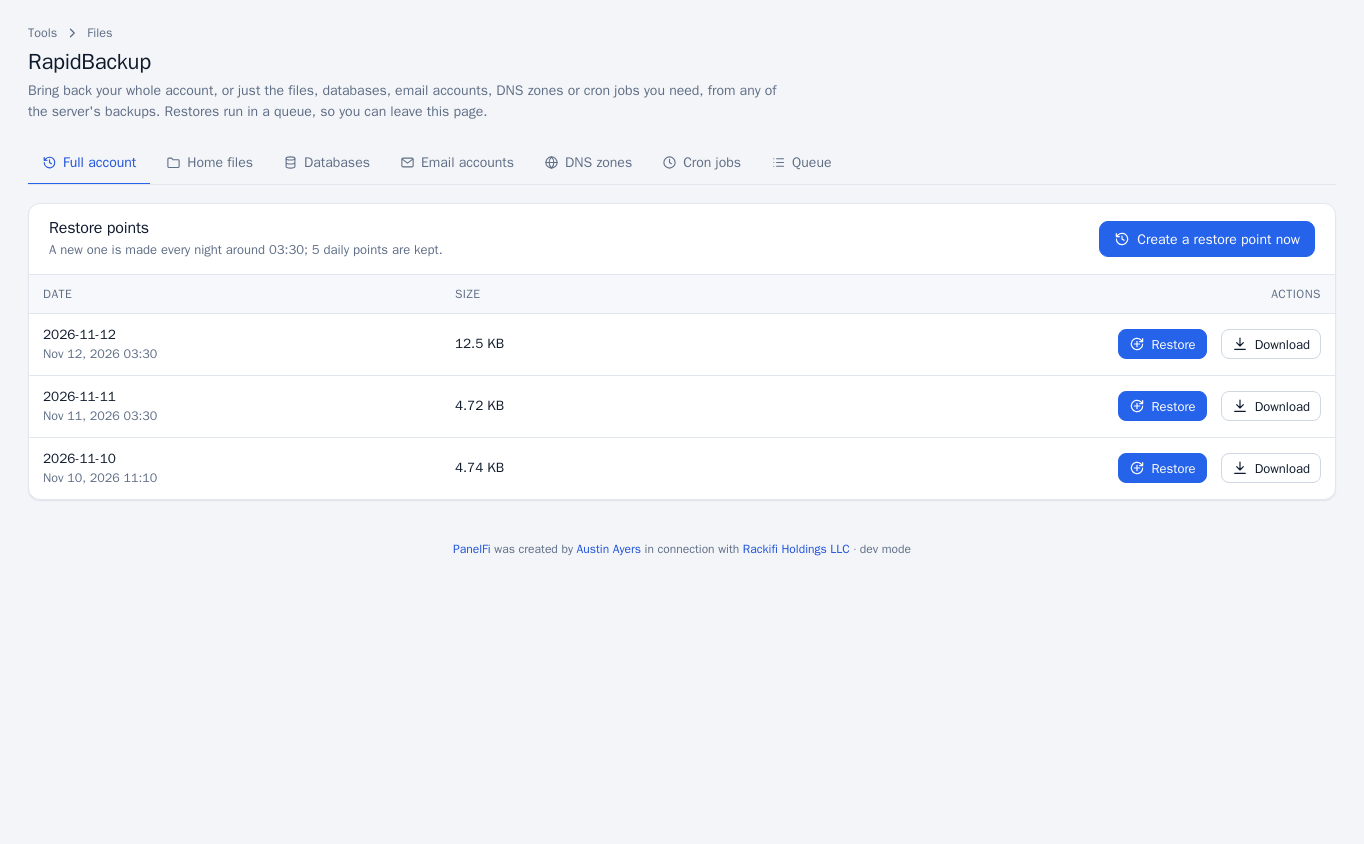
Restore the whole account
- On the Full account tab, find the restore point (one per night; the page shows the time and how many days are kept).
- Click Restore and confirm. Files and databases in the backup replace the current ones; files made since are kept. Missing email accounts, DNS zones and cron jobs come back.
Click Download on a restore point to get the backup file instead. If it has not run yet, Create a restore point now makes one.
Restore only some files
- On Home files, click Browse files on a restore point.
- Open folders and tick the files and folders you want.
- Click Restore ticked items. They are restored to the same place; current files with the same names are replaced and everything else is left alone.
Restore databases, email, DNS or cron jobs
On those tabs click Choose what to restore on a restore point, tick the items and click Restore ticked items.
- A ticked database is emptied and loaded from the backup; one that was deleted is created again.
- Ticked email accounts get their messages back. A deleted account is created again with its old password.
- A ticked DNS zone is put back as it was in the backup; the server’s own nameserver and mail records stay current.
- Ticked cron jobs are added back; the jobs you have now are kept.
Restores run in a queue, so you can leave the page. The Queue tab shows each restore as Queued, Running, Done, Done with warnings or Failed, with a log.
Notes and limits
- Backups contain your email and database contents. Keep downloaded copies somewhere safe.
- If nightly backups are off on the server, restore points appear only when a backup is made.
- Backup (which also controls the Backup Wizard) and RapidBackup can each be switched off per package in the Feature Manager. How the server schedules backups is in Backups (server panel).