Where to find itCustomer panel › Domains › Redirects
Add a redirect
- Open Domains > Redirects.
- Choose the Site (one of your domains).
- In Address on the site enter the path to redirect, such as
/old-page. Use/for the home page. - In Redirect to enter the full destination, such as
https://example.com/new-page. - Choose the Type: Permanent (301) or Temporary (302).
- Tick Include everything below it if
/old/pageshould also go to the new address, keeping the rest of the path. - Click Add redirect.
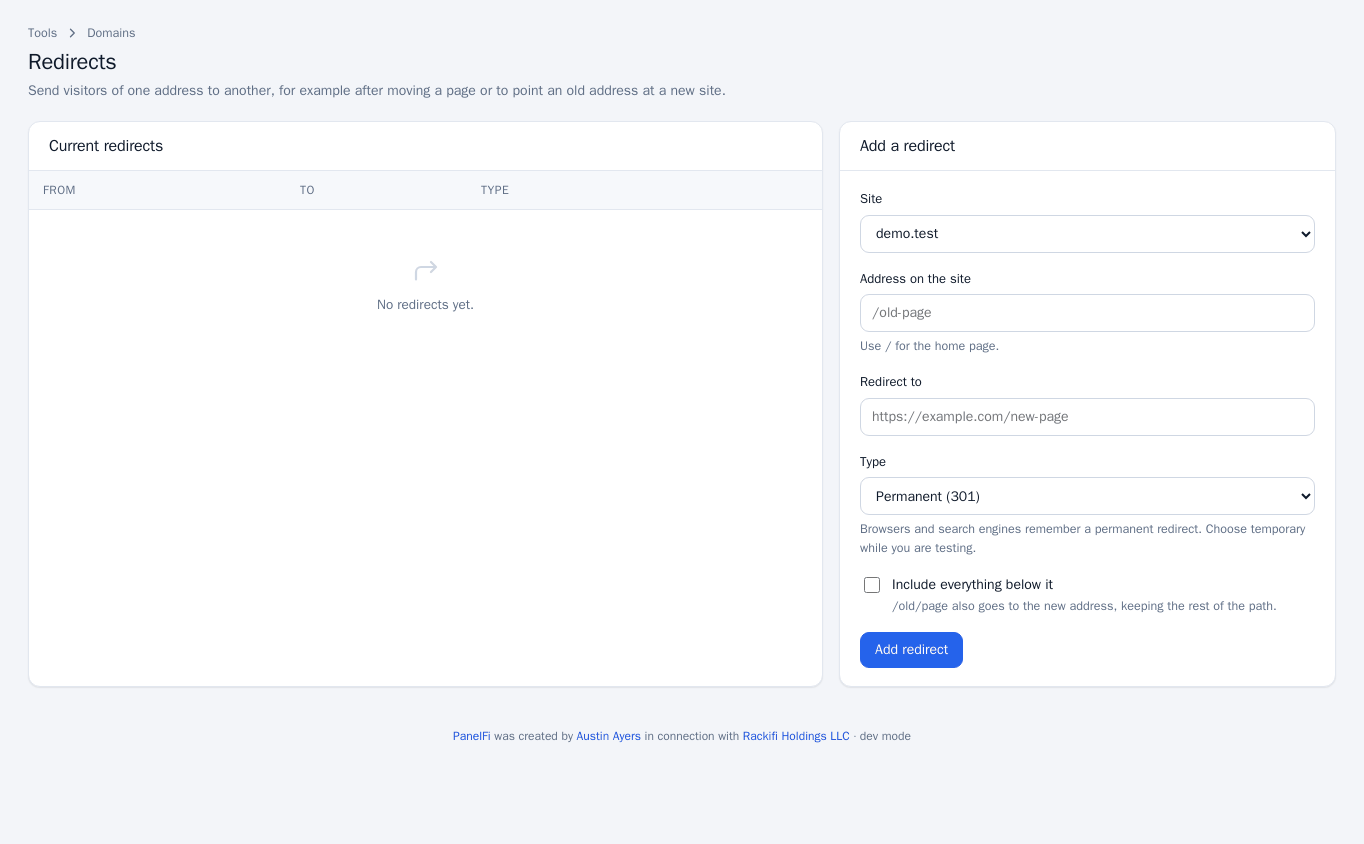
Choose 301 or 302
Browsers and search engines remember a permanent redirect, so use 301 for a page that has really moved. Use 302 while you are testing, or when the move is not final.
Remove a redirect
Find it in Current redirects and click Remove.
Notes and limits
- A redirect onto itself is refused because it would loop forever.
- There can be only one redirect per address on a site, and up to 200 redirects per account.
- Redirects can be switched off per package in the Feature Manager.