Basic Setup
Server-wide defaults used when accounts, zones and certificates are created.
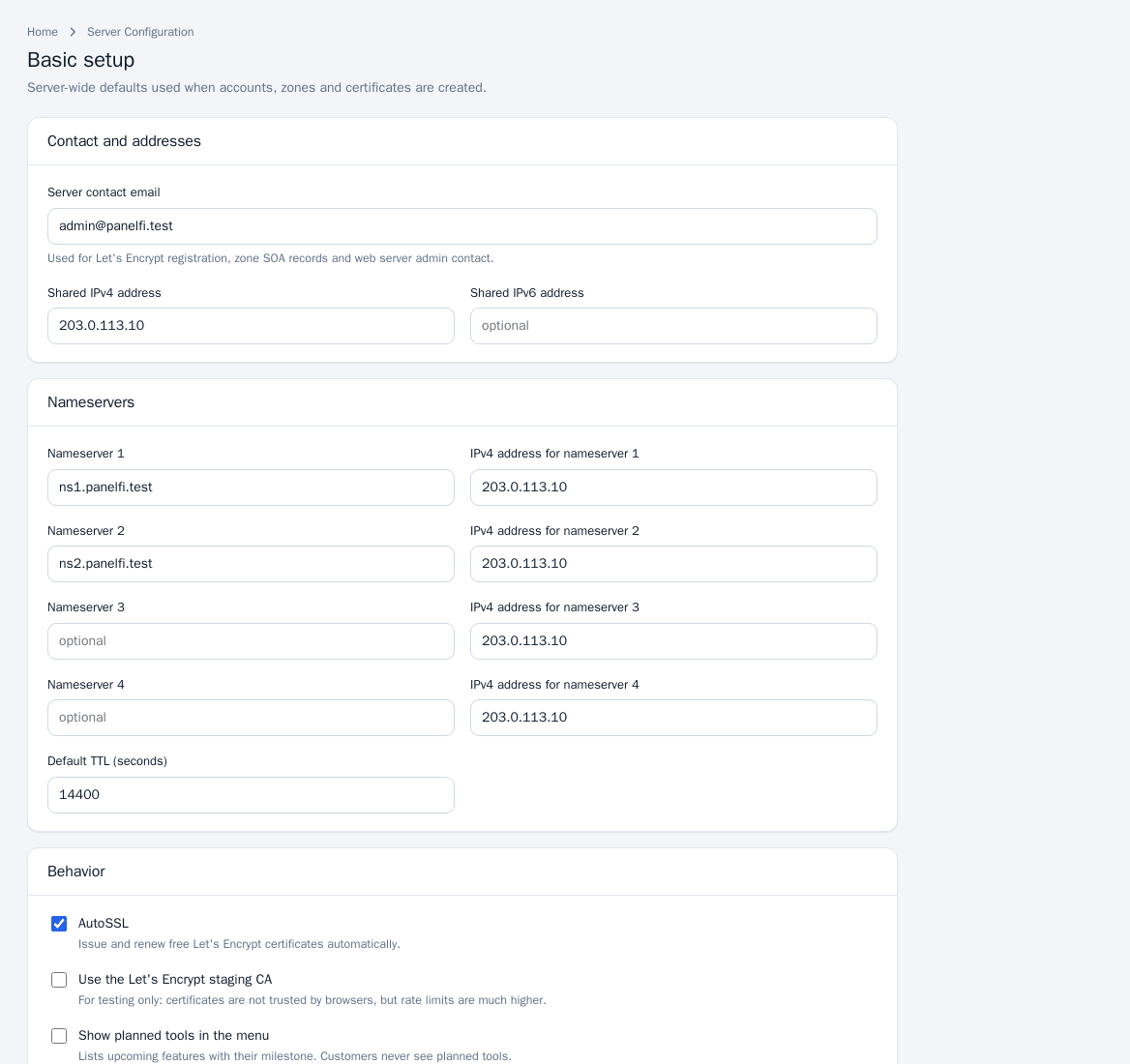
- Open Server Configuration > Basic Setup.
- Under Contact and addresses set the Server contact email (used for Let's Encrypt registration, zone SOA records and web server admin contact), the Shared IPv4 address and Shared IPv6 address.
- Under Nameservers enter up to four nameserver host names, each with its IPv4 address, and the Default TTL (seconds).
- Under Behavior choose AutoSSL, Use the Let's Encrypt staging CA (testing only: not trusted by browsers, much higher rate limits) and Show planned tools in the menu (customers never see planned tools).
- Click Save settings.
Tweak Settings
Settings that change how the panels behave for everyone.
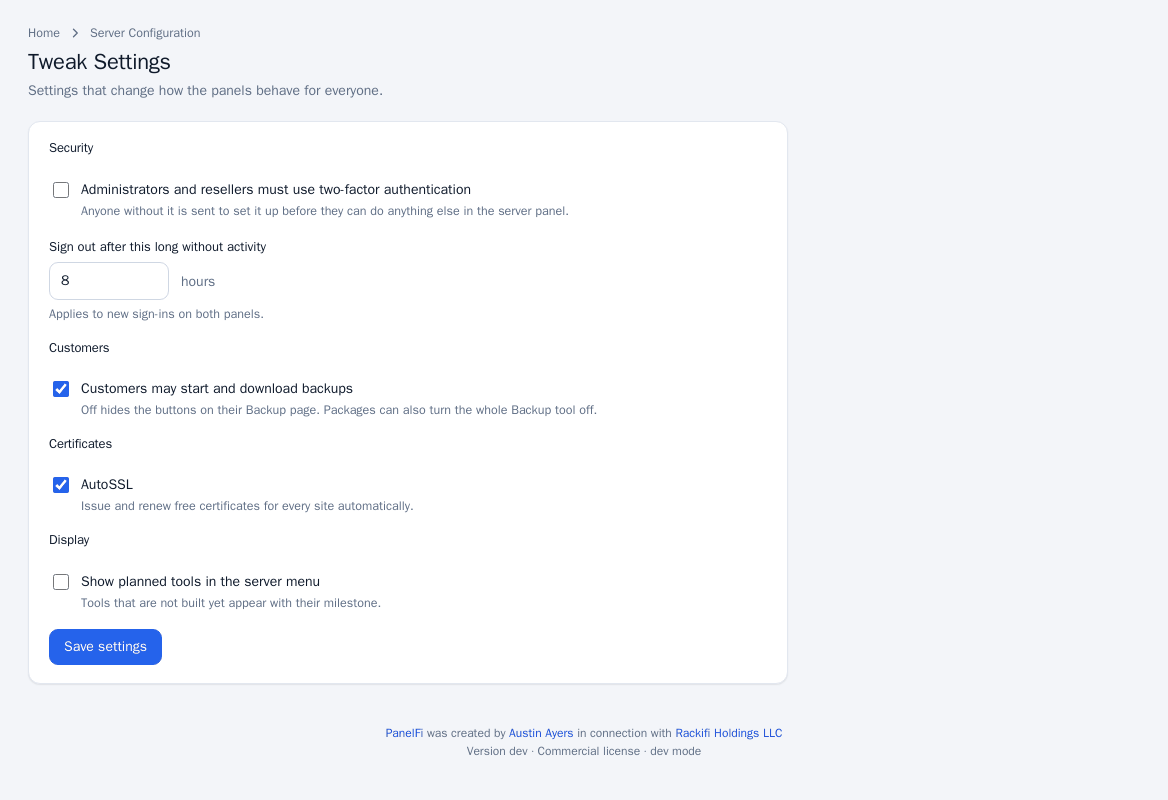
- Administrators and resellers must use two-factor authentication: anyone without it is sent to set it up before doing anything else in the server panel (see Administrator security).
- Sign out after this long without activity (hours): applies to new sign-ins on both panels.
- Customers may start and download backups: off hides those buttons on the customer Backup page. Packages can also turn the whole Backup tool off.
- AutoSSL and Show planned tools in the server menu, same as in Basic Setup.
Click Save settings to apply.
Server Time
Server Configuration > Server Time shows the clock, time zone and whether it is synchronized with a time server. Choose a Time zone and click Set time zone. Scheduled backups, cron jobs and log times follow it. If the clock is not synchronized, install or start a time service such as chrony or systemd-timesyncd.
Change hostname
Networking Setup > Change Hostname: enter the server's fully qualified name (at least three parts, such as server.example.com; it must not be a domain hosted for a customer) and click Change hostname. Point an A record for it at this server before requesting a panel certificate (see Custom and hostname certificates).
Resolver Configuration
The DNS servers this server asks when it looks up other domains, for example to deliver mail or issue certificates (not the nameservers of your hosted domains). Enter a primary, secondary and third resolver and click Save resolvers. A wrong address stops mail delivery and certificate renewals. If the operating system manages the resolvers, they are shown read-only; change them in its network settings.
IP addresses
- IP Functions > Show IP Address Usage lists the addresses on the server and which accounts use them (shared, dedicated or free).
- Add a New IP Address: enter an address your provider has routed to this server, a prefix length (usually 32 for an extra IPv4, 64 for IPv6) and the interface, then Add address. PanelFi brings it up now and at every boot; it does not edit the server's own network configuration, and only addresses added here can be removed here.
- Change Site's IP Address: choose an account and either the shared address or a free dedicated one, then Change IP address. The account's DNS A records and SPF entries move to the new address, and websites keep working throughout.
Server Information and Terminal
- Support > Server Information shows hostname, OS, kernel, uptime, web server, PanelFi version, processor, CPUs, load, memory, swap and disks.
- Server Configuration > Terminal is a command line on the server as root. Everything typed runs with full control of the server, so close the page when you are done. Opening and closing a session is recorded in the Audit Log.
Notes and limits
- These pages are root-only, except those listed for resellers in The two panels.
- Nameserver records and zones are covered in Nameservers.